
Shopify
Connect BabyLoveGrowth and publish articles on auto-pilot.
The Shopify integration allows BabyLoveGrowth to automatically publish articles directly to your Shopify store blog. Once connected, every newly generated article will be published automatically (with 'live' or 'draft' status).
Integrations Video
No blogs found? Check these first
If you see "No blogs found. Create a blog in your Shopify store first," confirm that your store has at least one blog set up (e.g. Content → Blog posts → Manage blogs → Add blog), that the credentials you provided are valid, and that your app has the correct access permissions ( read_content and write_content). Also ensure the user who created and installed the app has the Owner role for the site. The Collaborator role does not work for this integration.
Integrations Instructions
To begin, go to Settings → Integrations and click Connect next to Shopify. Then follow the steps below.
What You Needv
Shopify admin access with permission to create apps
Store name from your .myshopify.com domain (e.g.,
na70yq-bnfromna70yq-bn.myshopify.com)At least one Blog in Shopify (create one if none appears in the dropdown)
1. Get Your Store Namev
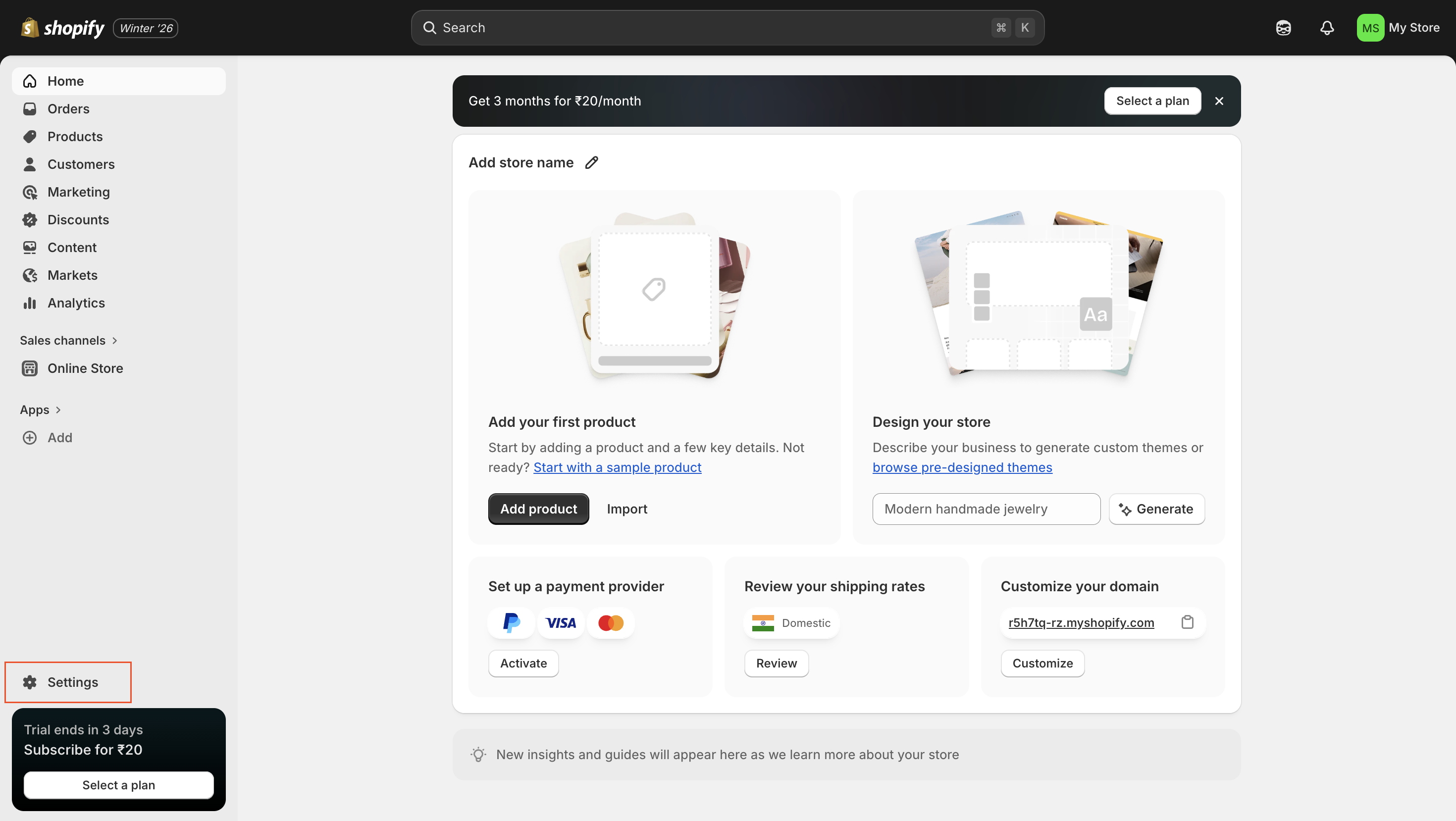
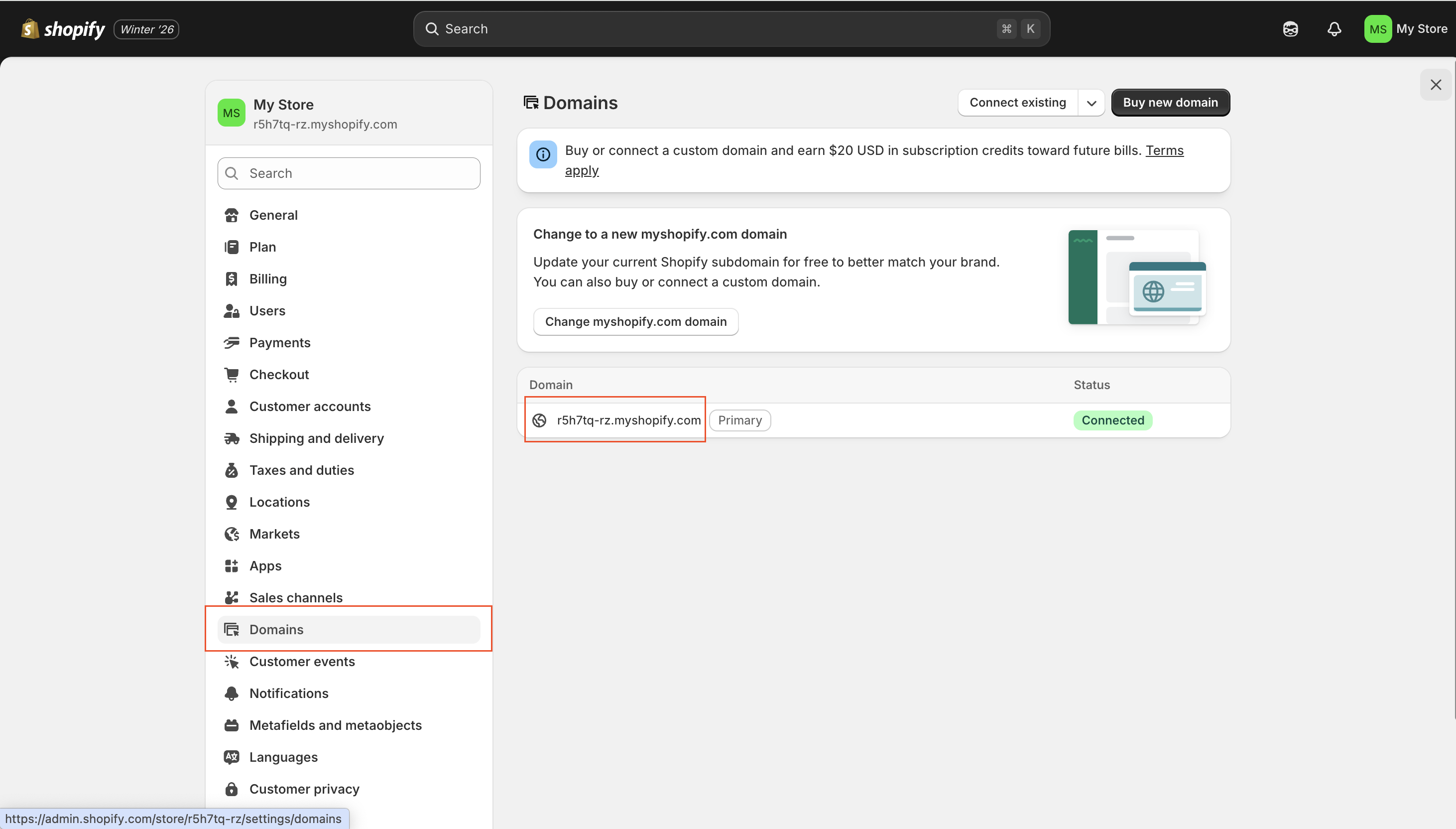
In Shopify Admin, go to Settings → Domains
Find your
.myshopify.comdomain (e.g.,na70yq-bn.myshopify.com)Copy the part before
.myshopify.com(e.g.,na70yq-bn). This is your Store Name for BabyLoveGrowth
2. Create a Shopify App in Dev Dashboardv
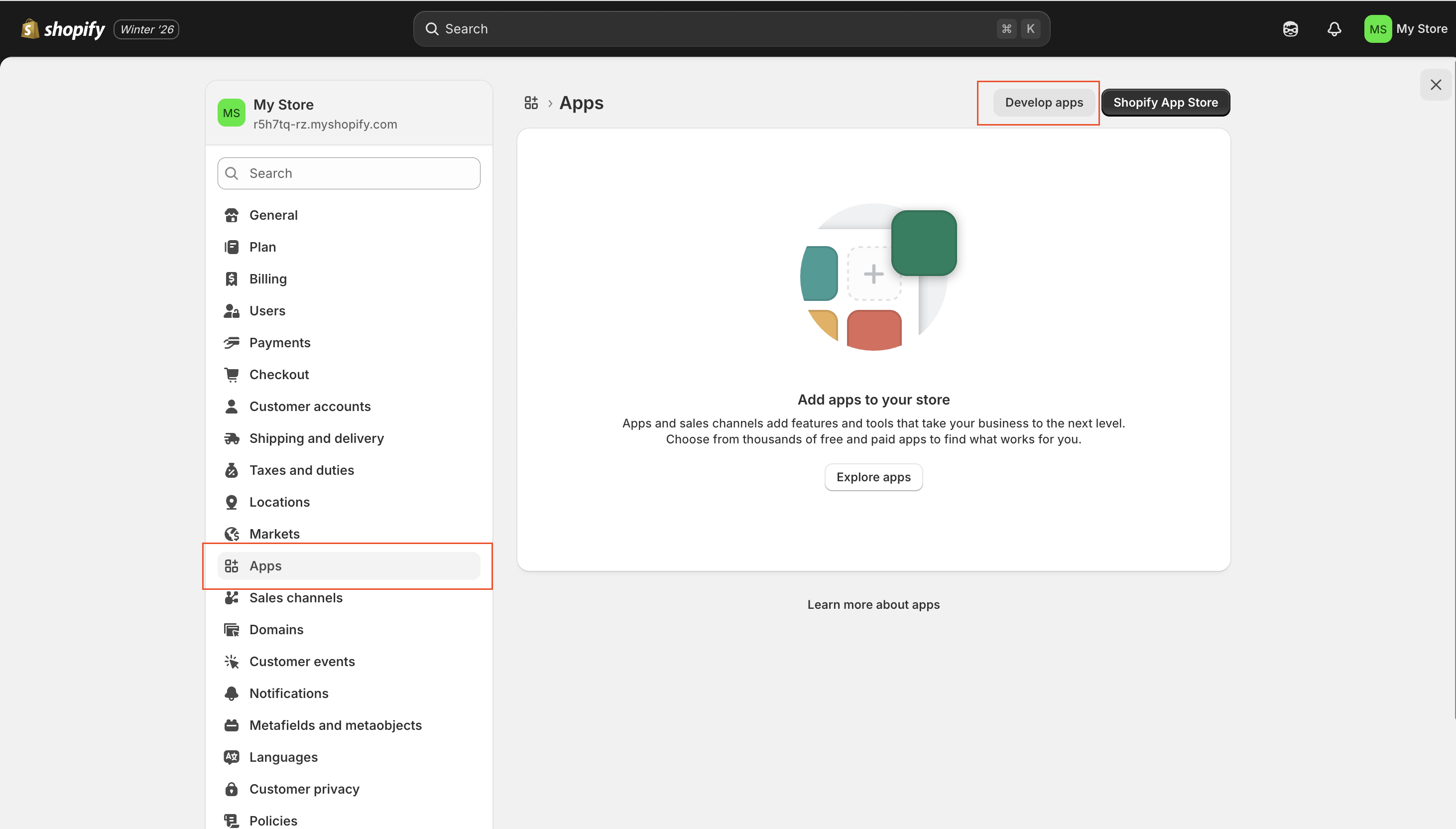
In Shopify Admin, go to Apps, then click Develop apps
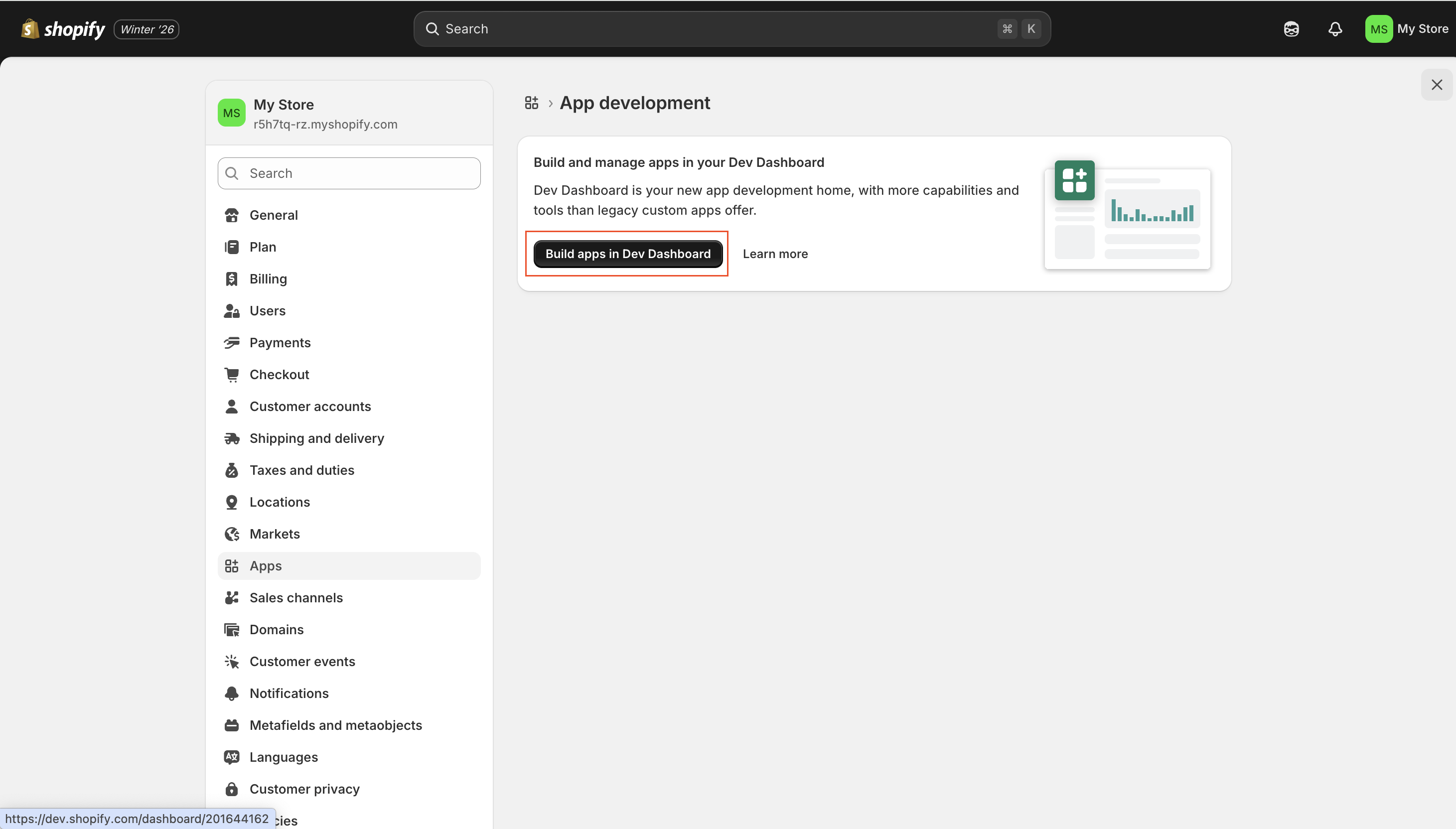
Click Build apps in Dev Dashboard (opens dev.shopify.com/dashboard)
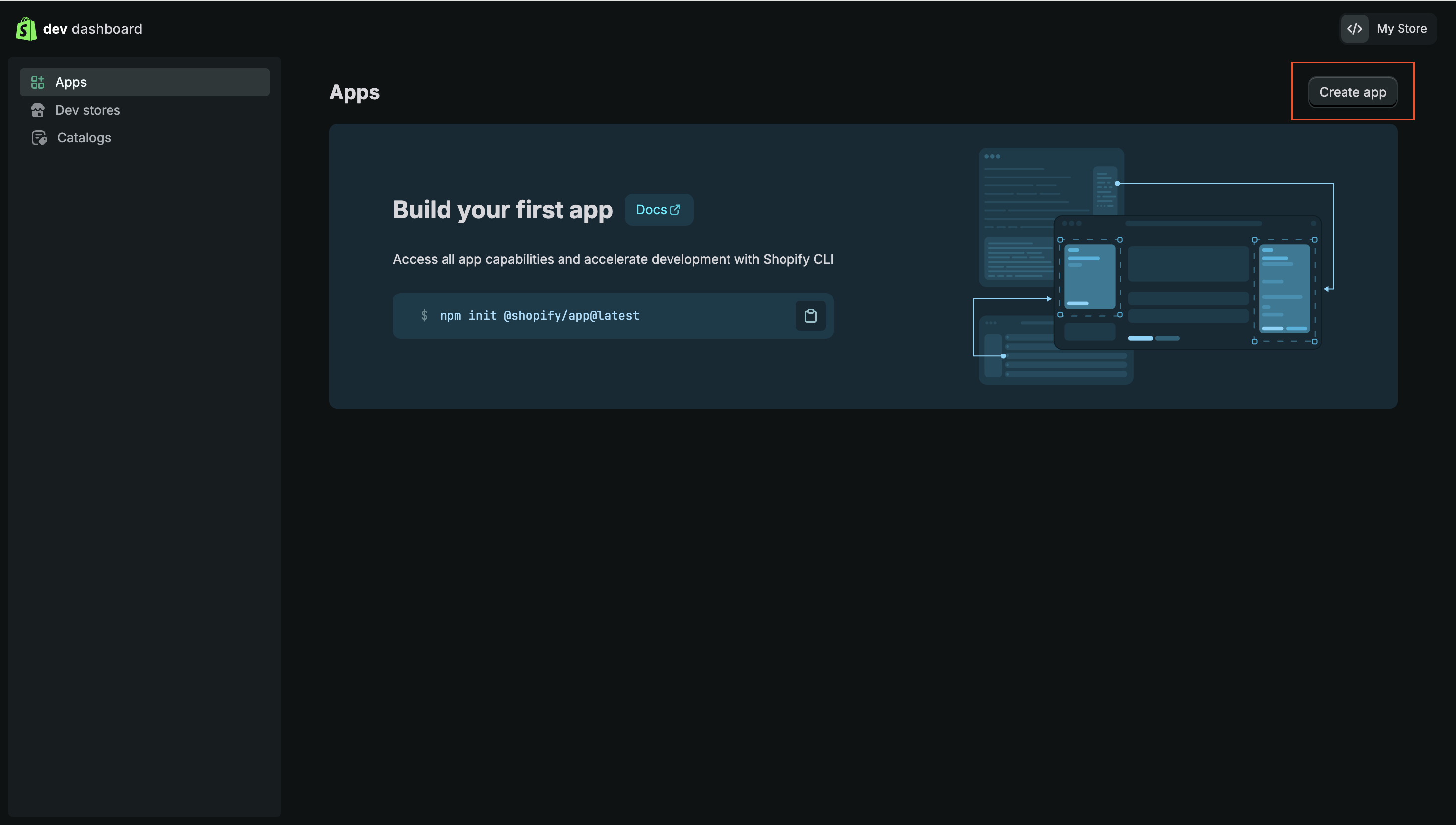
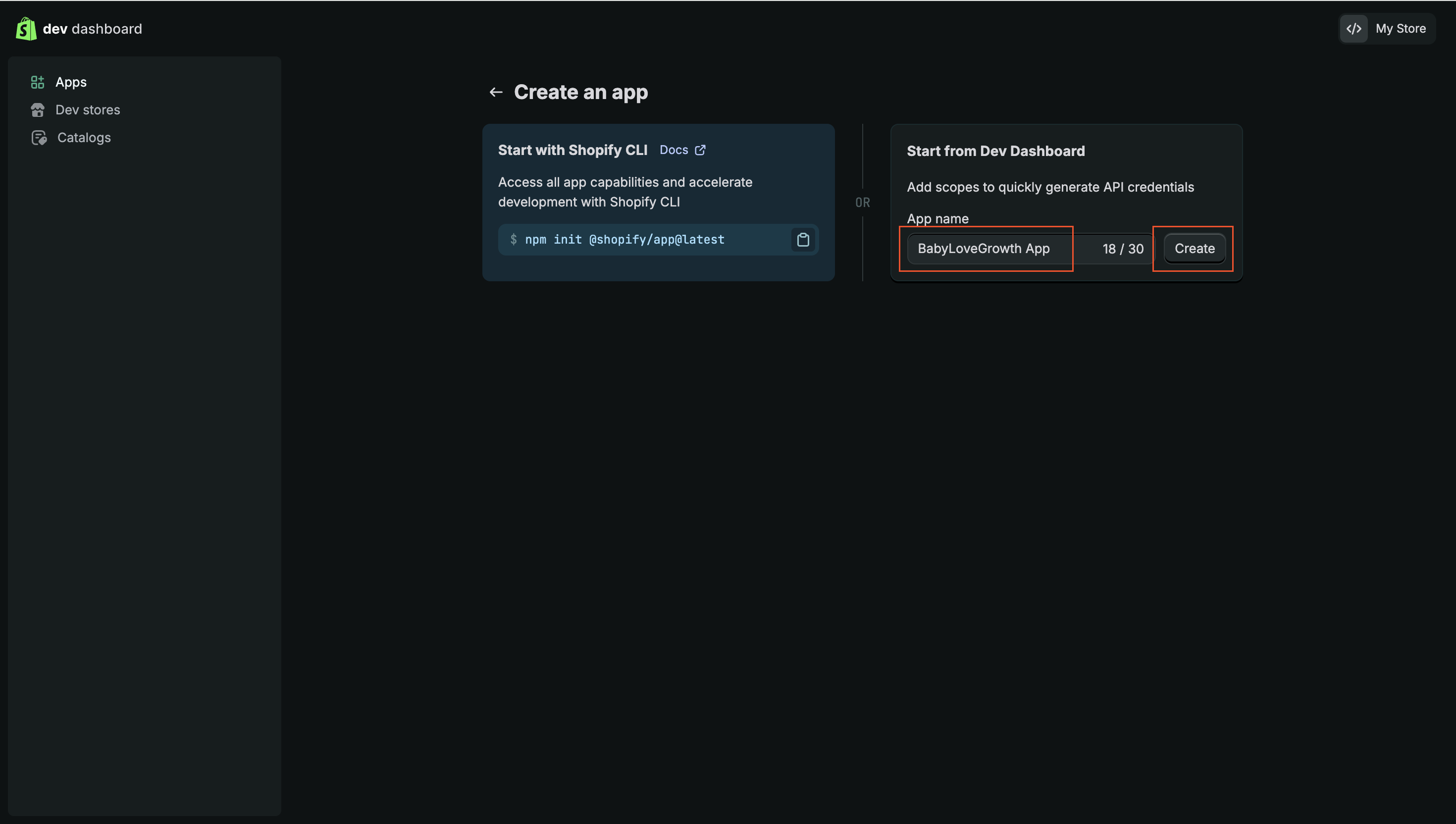
Click Create app and name it (e.g., "BabyLoveGrowth Publisher")
3. Set Scopes (Content Only)v
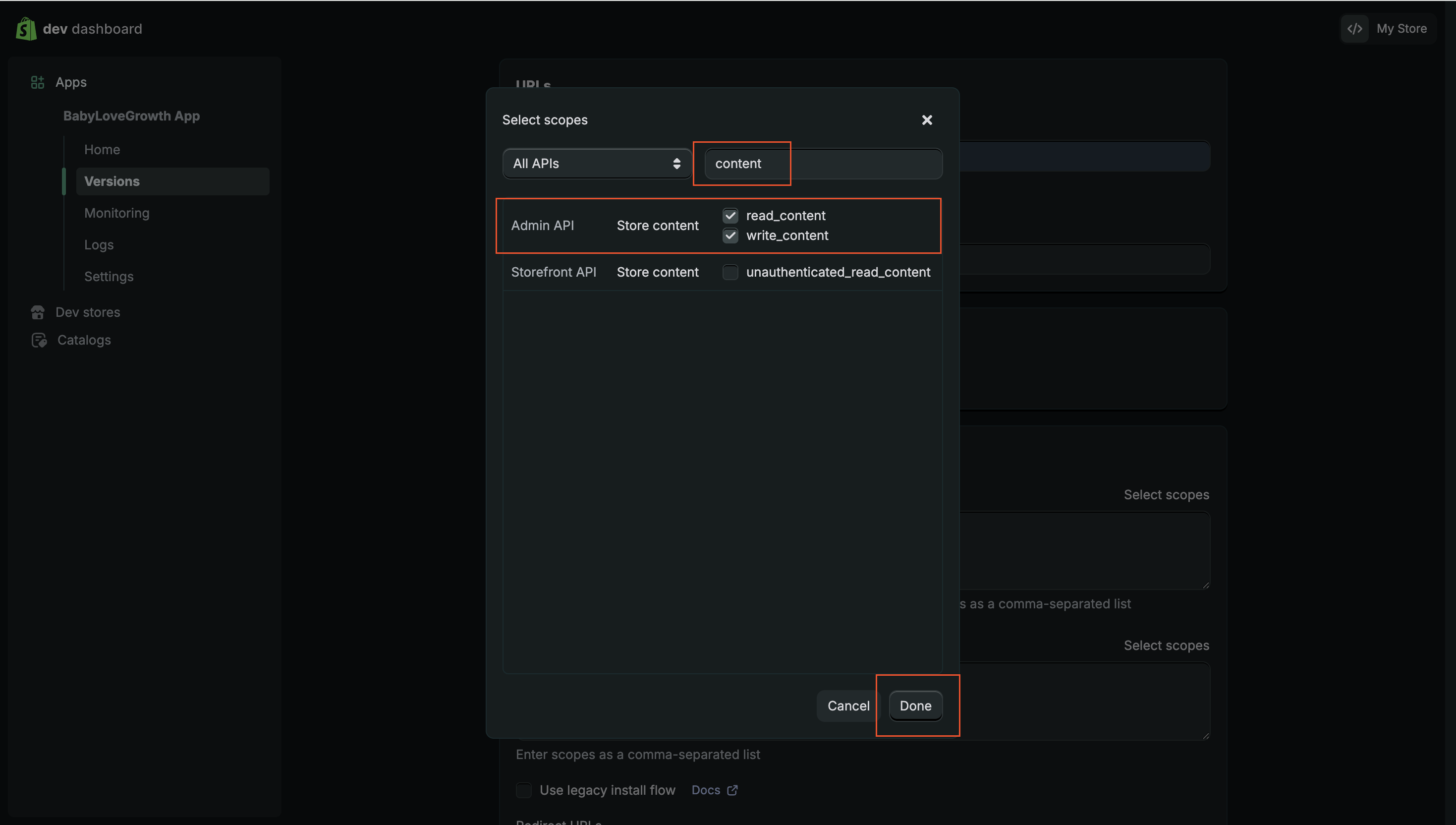
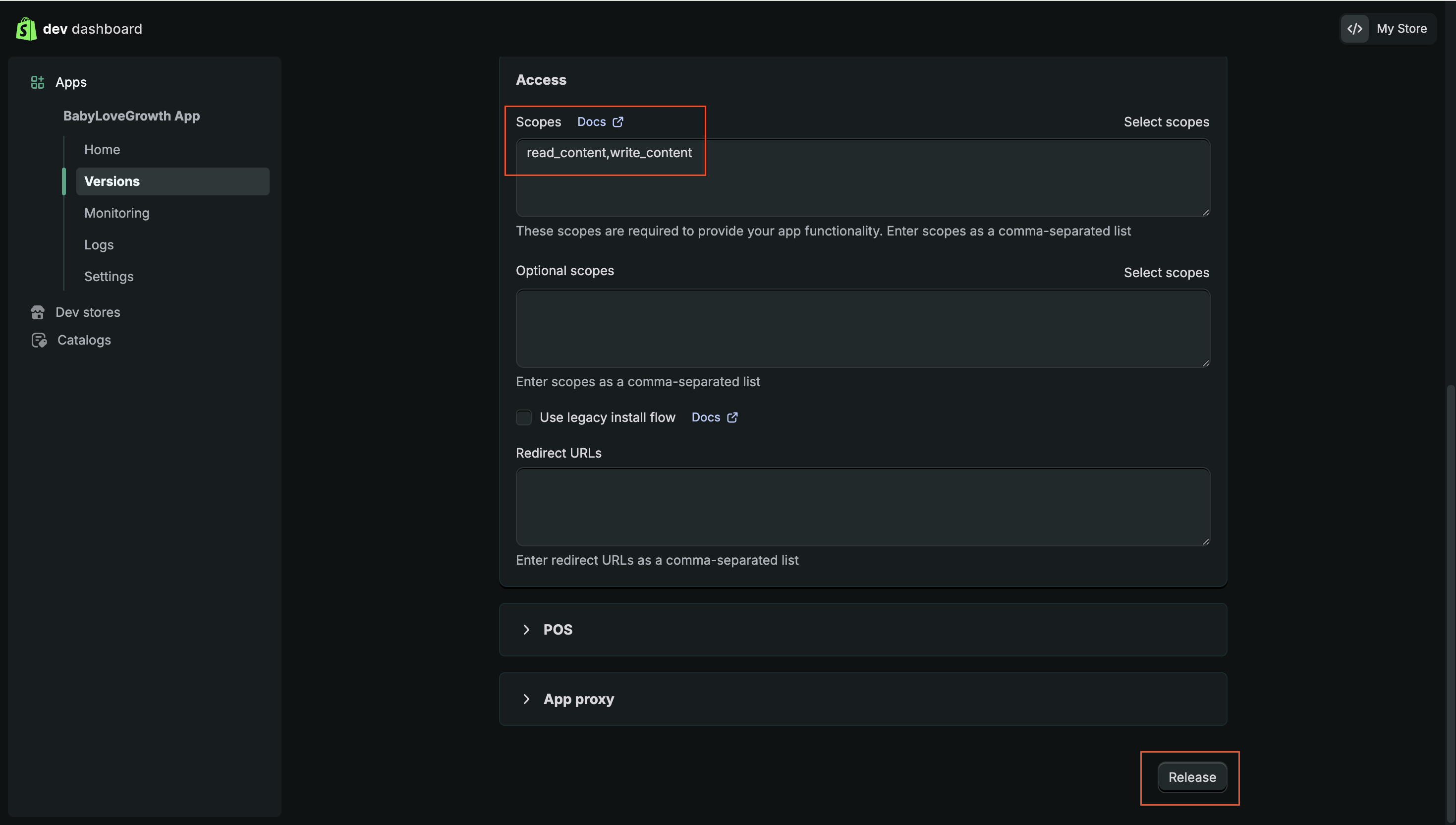
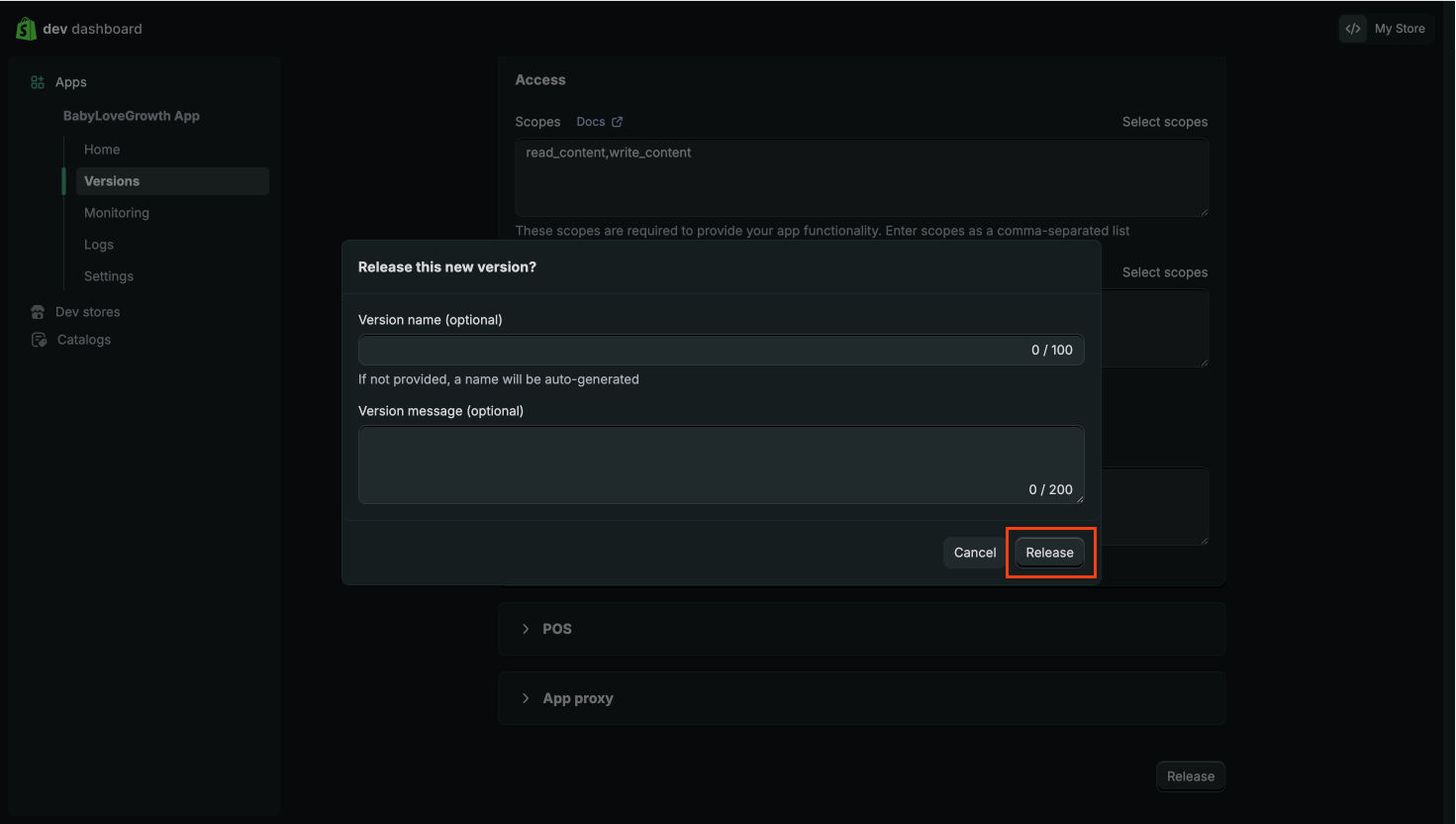
In the app, go to Access and click Select scopes
Search "content" and enable: read_content and write_content
Click Done, then click Release (version name can be left blank) and confirm
4. Install the Appv
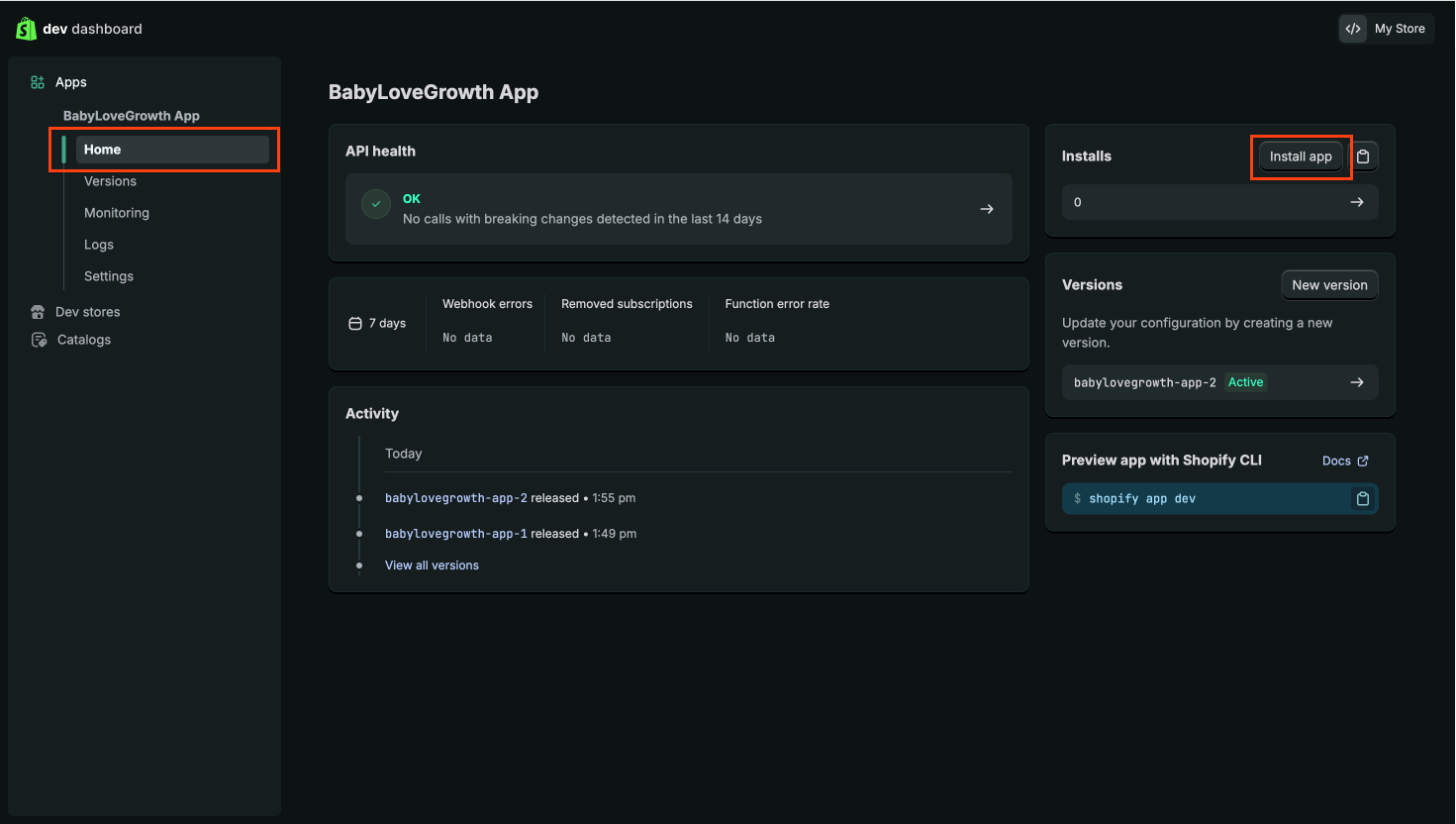
Click Home in the app sidebar
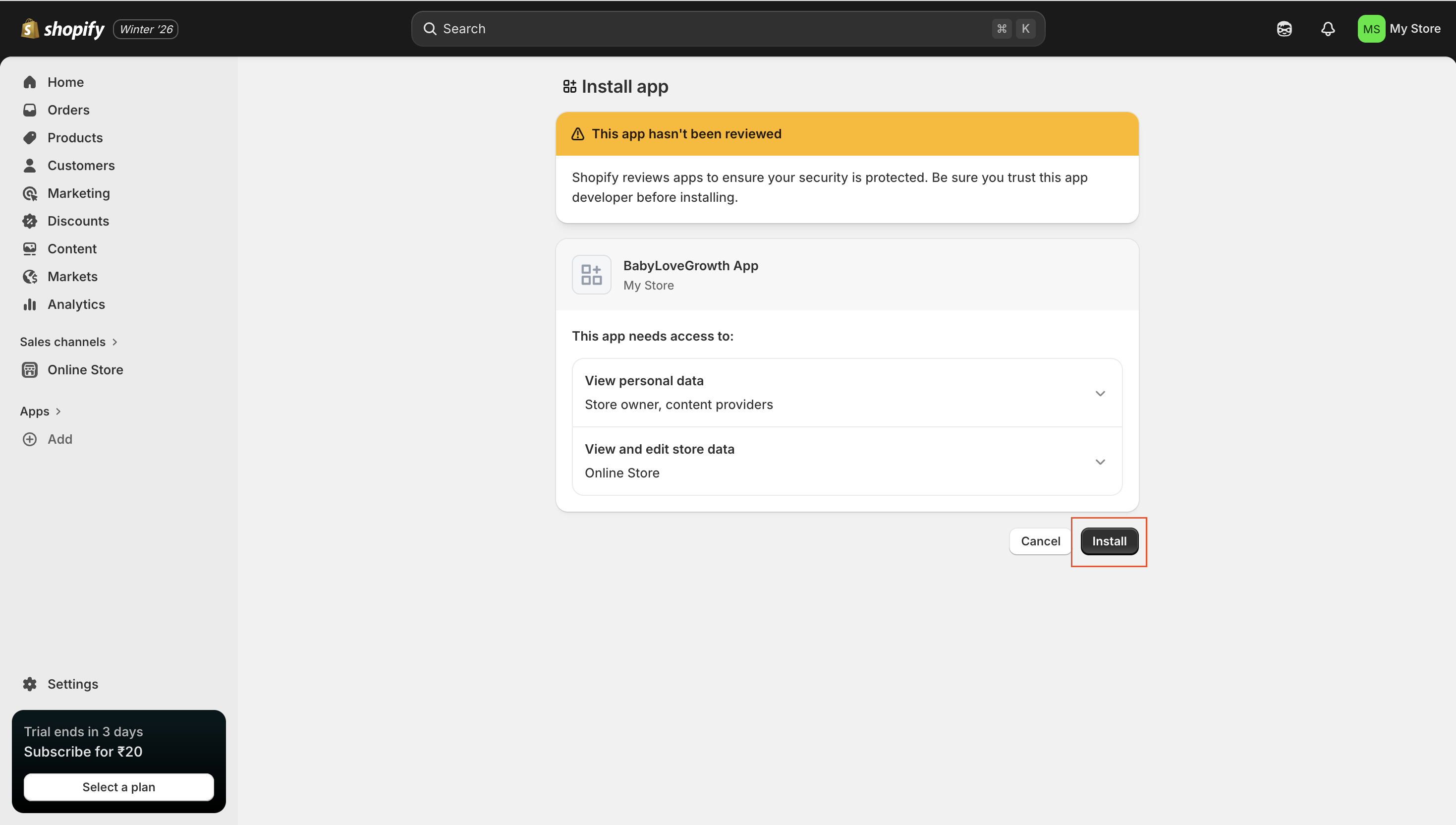
Click Install app (top right) and confirm in your Shopify store dashboard
Verify the app shows under Apps in your Shopify store
5. Copy Client ID and Client Secretv
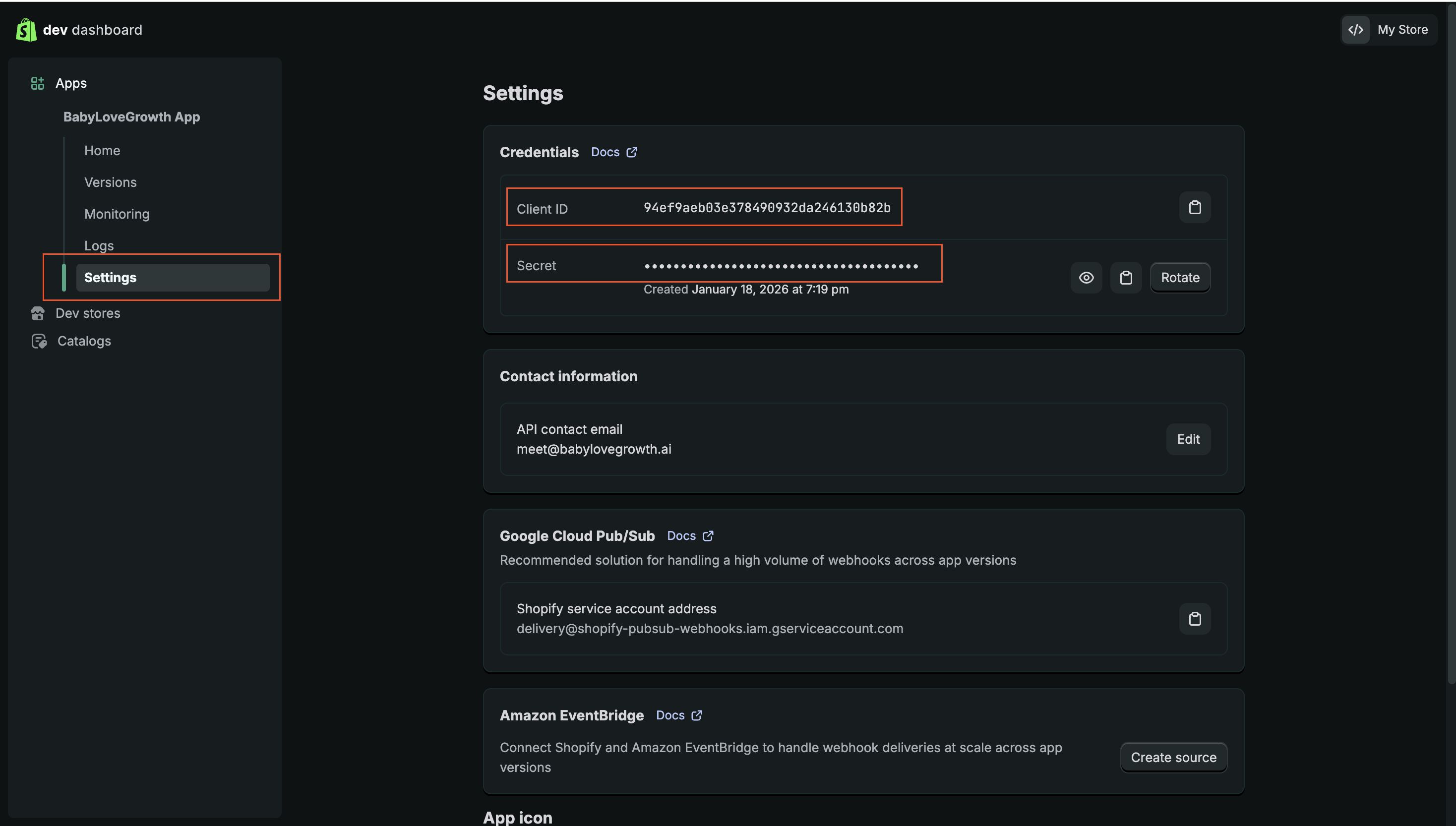
- Back in the Shopify Dev Dashboard, open your app
Click Settings in the app sidebar
Copy the Client ID and Client Secret
6. Connect in BabyLoveGrowthv
In the BabyLoveGrowth dashboard, open Integrations → Shopify
Enter Store Name (from Step 1), Client ID, and Client Secret
Select your Blog (create one in Shopify if none appears)
Set an Author (any name to show as the post author)
Choose Publish Status:
Publish Immediately — Articles go live instantly
Draft — Articles are saved as drafts for you to review before going live
Save. Connection succeeds when the integration shows Connected
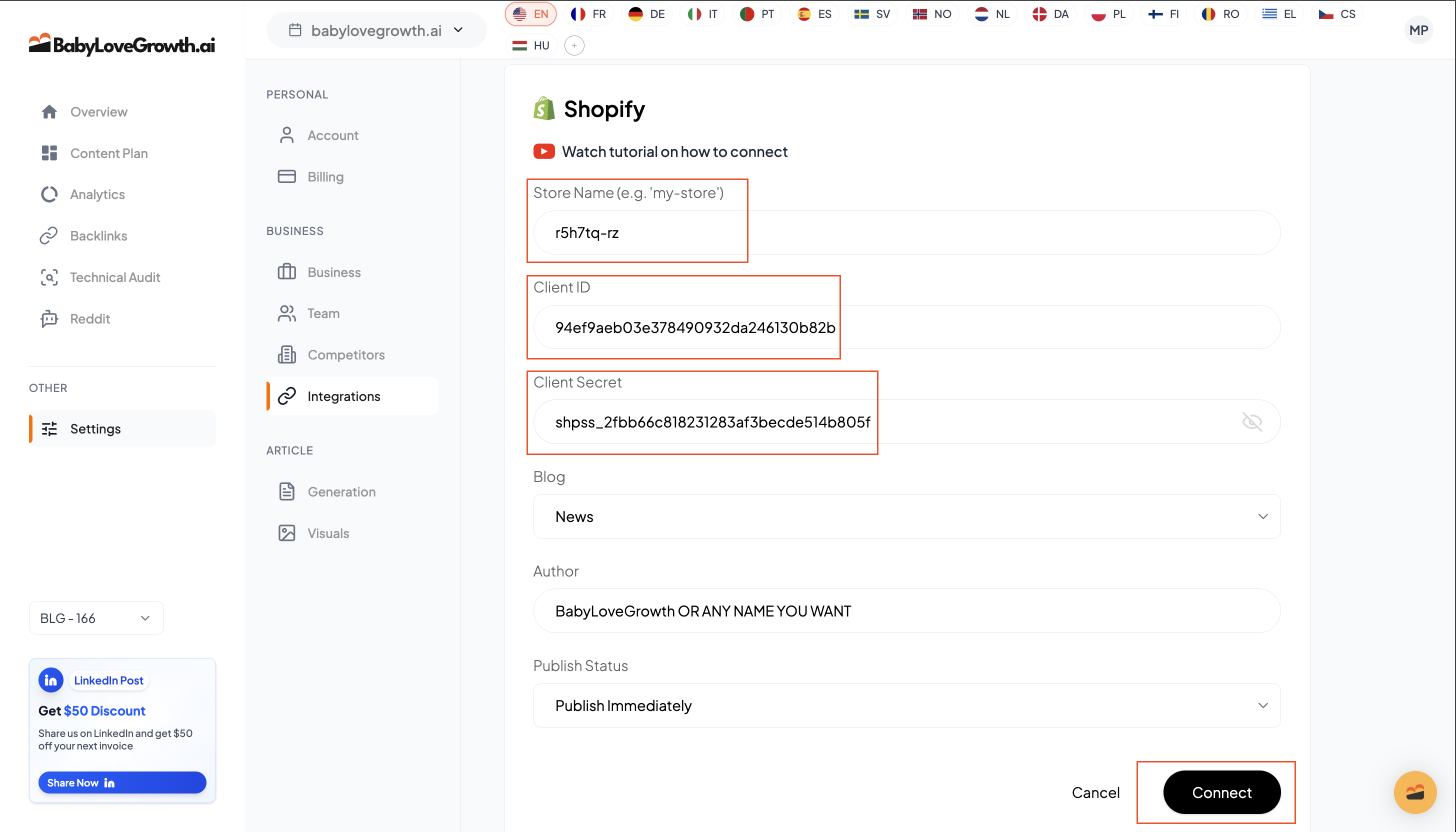
Once connected, articles will be published automatically to your website.
Tips & Best Practicesv
- Be sure your blog exists in Shopify so it appears in the Blog dropdown
Use your
.myshopify.comstore name (not a custom domain) for the connection'Draft' status lets you review in Shopify before going live. 'Publish Immediately' makes articles live automtically.
Troubleshooting & FAQv
Cannot find blog?
Create a blog in Shopify (Online Store → Blog posts), then refresh the dropdown.
Connection fails?
Re-check Store Name (from .myshopify.com), Client ID, and Client Secret; ensure scopes read_content and write_content are enabled.
App not visible in store Apps?
Make sure you completed the Install step in the store dashboard.
Publish issues?
Confirm the integration shows Connected and your blog selection is valid.
Firewall/security apps blocking requests?
If requests are blocked, allow BabyLoveGrowth; if needed, contact support via the bottom-right chat icon.
Do I need a special Shopify plan?
Any plan that allows creating and installing custom apps works.
Why can't I see my blog?
Create a blog in Shopify first; then refresh the integration form.
Will posts go live immediately?
Only if you choose Publish Immediately. Choose Draft to review first.
Can I change the author name?
Yes. Set any author name in the integration form; Shopify will use it for the post.
Which store name do I enter?
The part before .myshopify.com (e.g., na70yq-bn).