
GoHighLevel
Connect BabyLoveGrowth and publish articles on auto-pilot.
The GoHighLevel integration allows BabyLoveGrowth to automatically publish articles directly to your GoHighLevel blog. Once connected, every newly generated article will be published automatically (with 'published' or 'draft' status).
How to Connect GoHighLevel
To begin, go to Settings → Integrations and click Connect next to GoHighLevel. Then follow the steps below.
What You Needv
GoHighLevel account with agency or location access
Location ID from your GoHighLevel Business Profile
Private Integration Token with blog permissions
At least one Blog created in GoHighLevel (Sites → Blogs)
1. Find Your Website/Blogv
- Log into your GoHighLevel dashboard
Click Sites in the left side menu
Click Websites in the top menu
- Search for the website you want to connect
- Make sure your website has at least one blog created
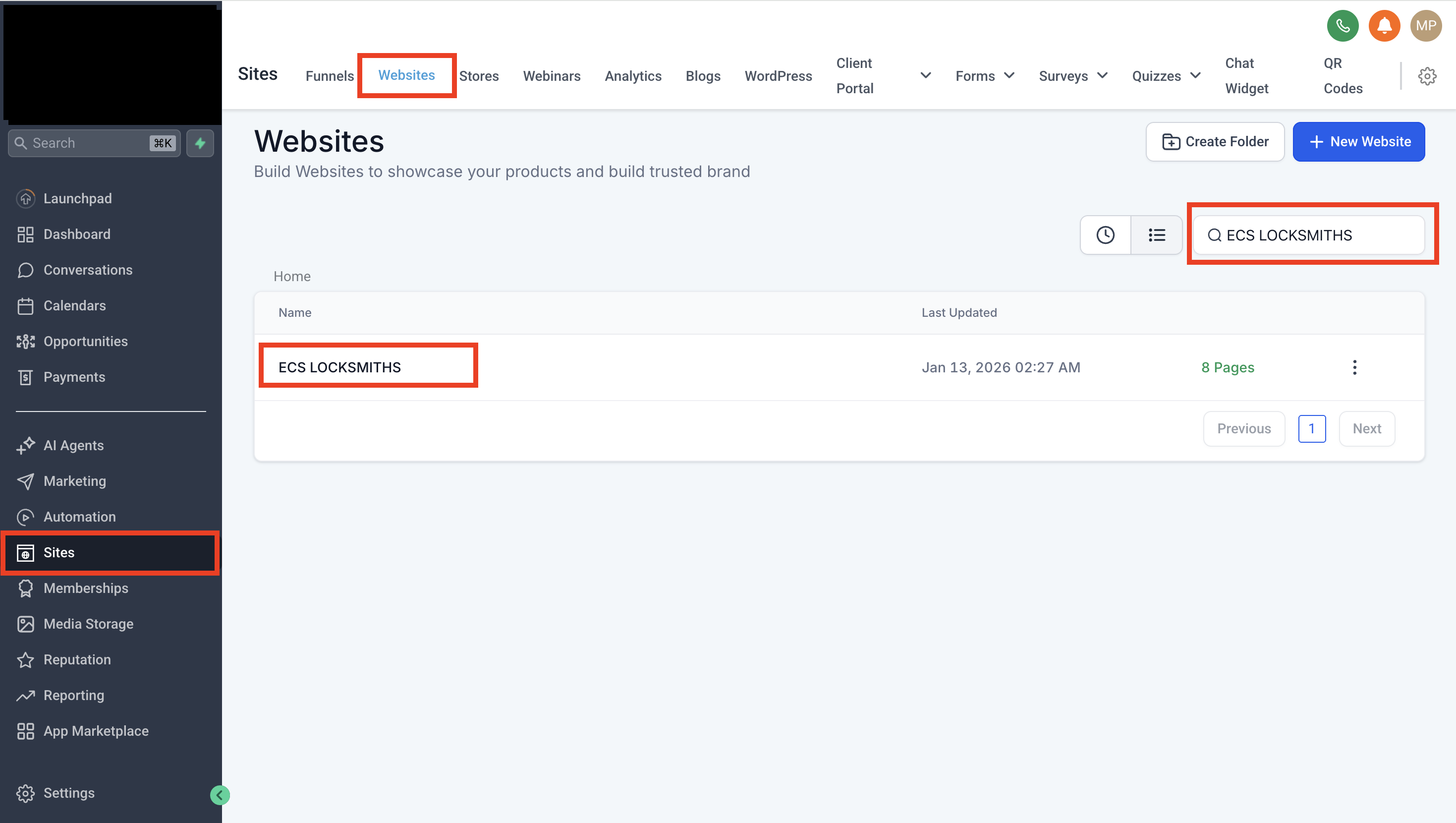
Tip: If you don't have a blog yet, create one in Sites → Blogs before continuing with the integration.
2. Create a Private Integration Tokenv
Click Settings in the left bottom corner
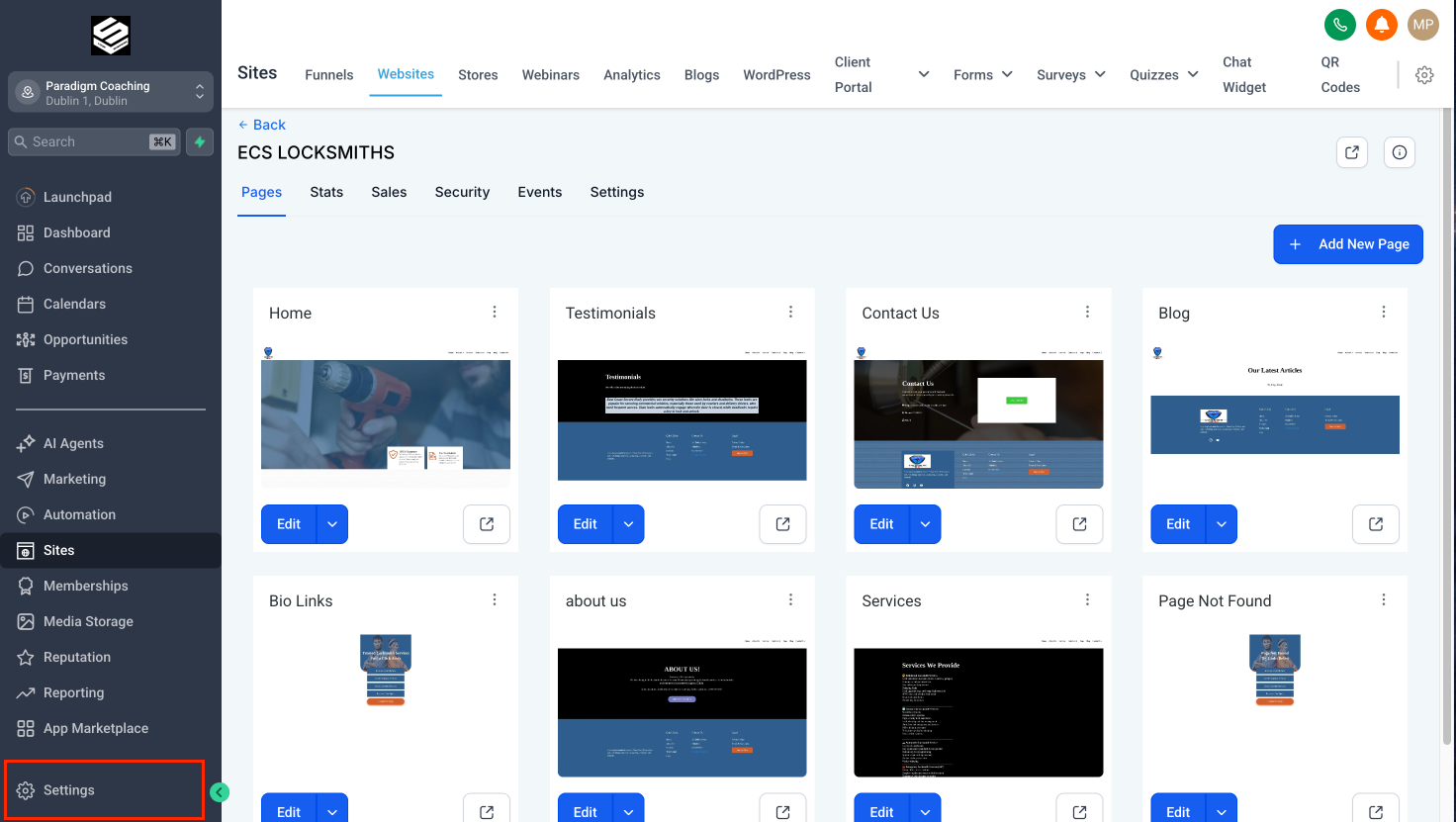
Click Private Integrations in the left menu
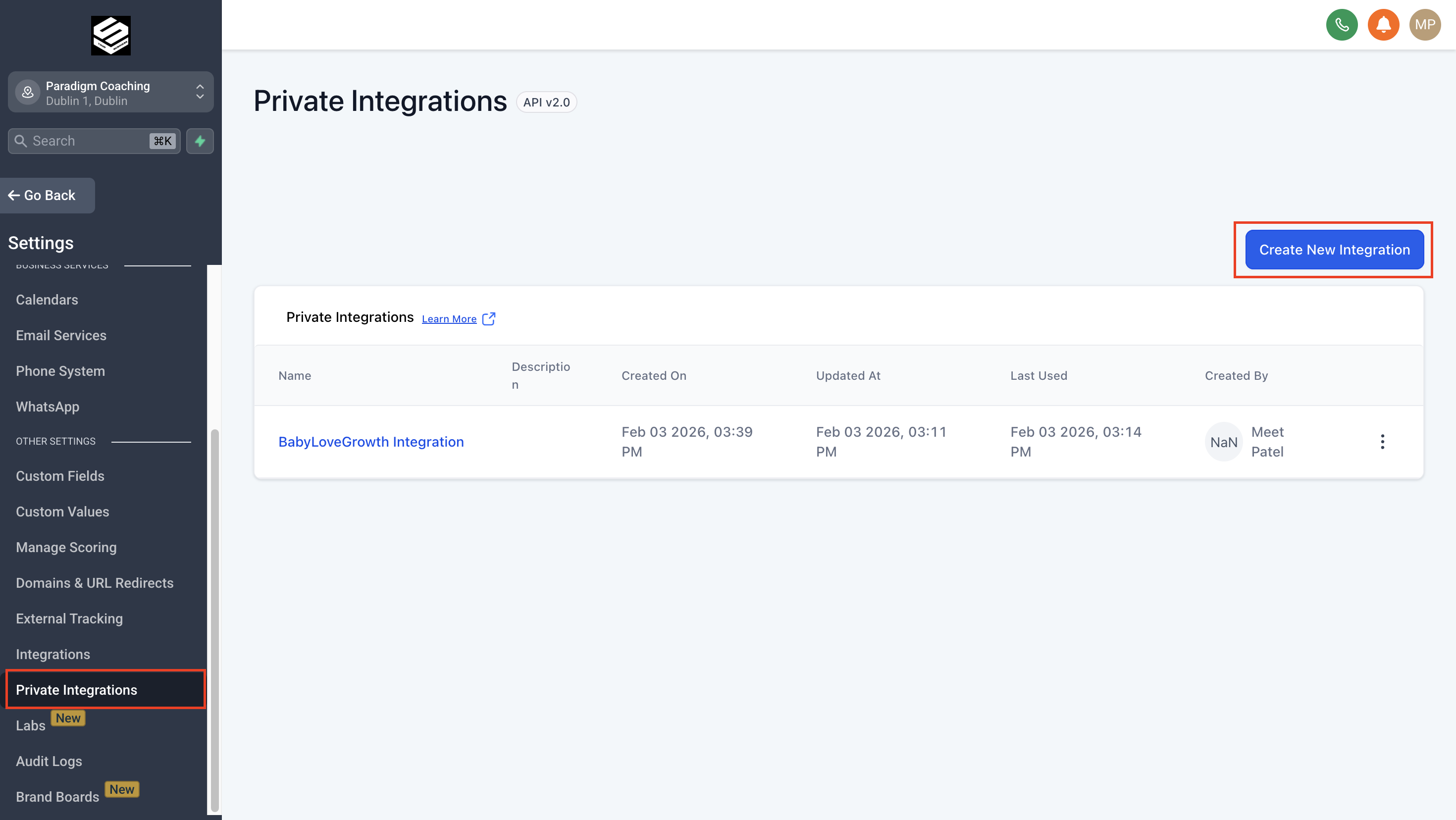
Click Create new Integration
- Enter a name (e.g., "BabyLoveGrowth Publisher") — you can write anything you want
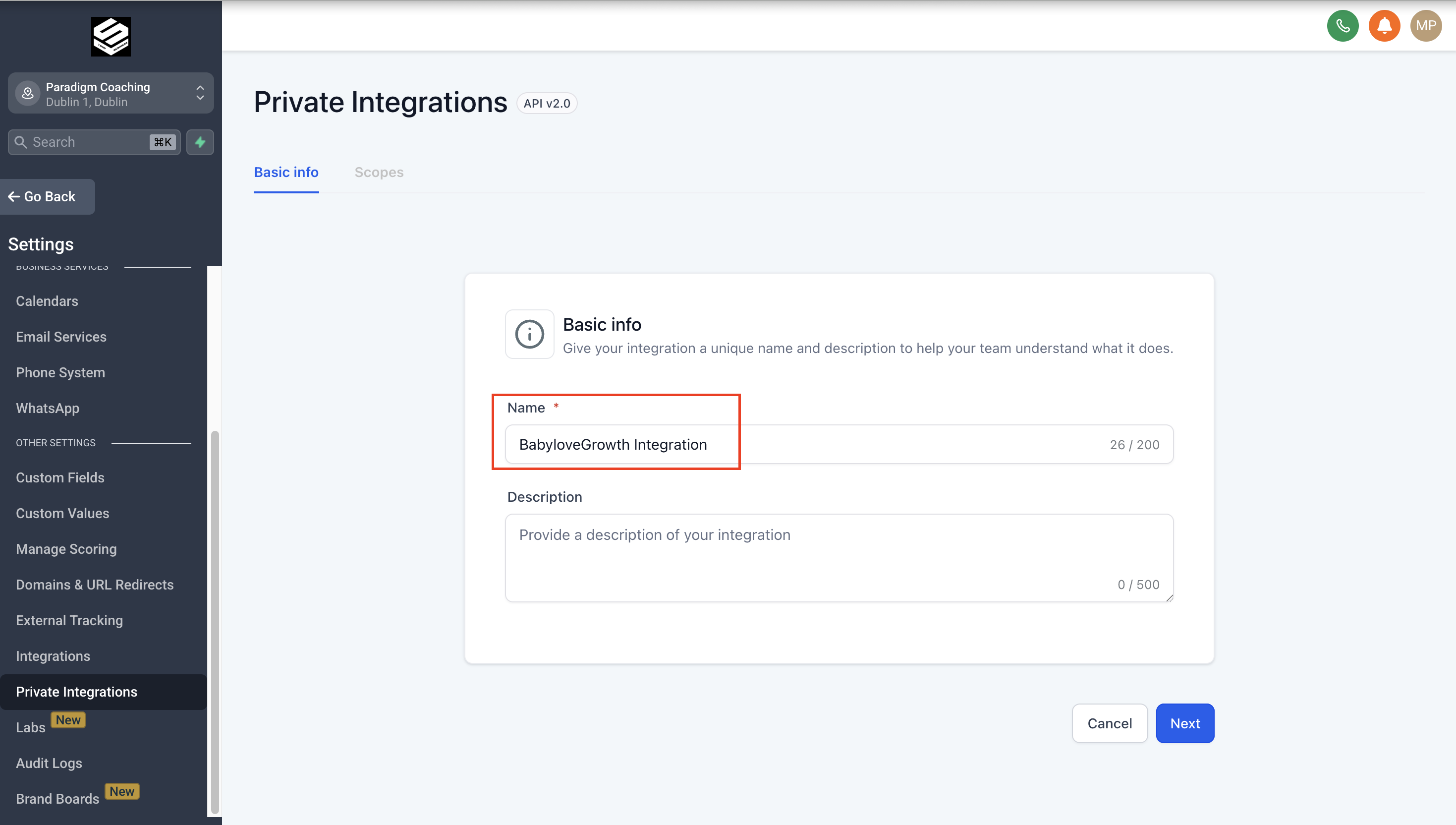
Click Next
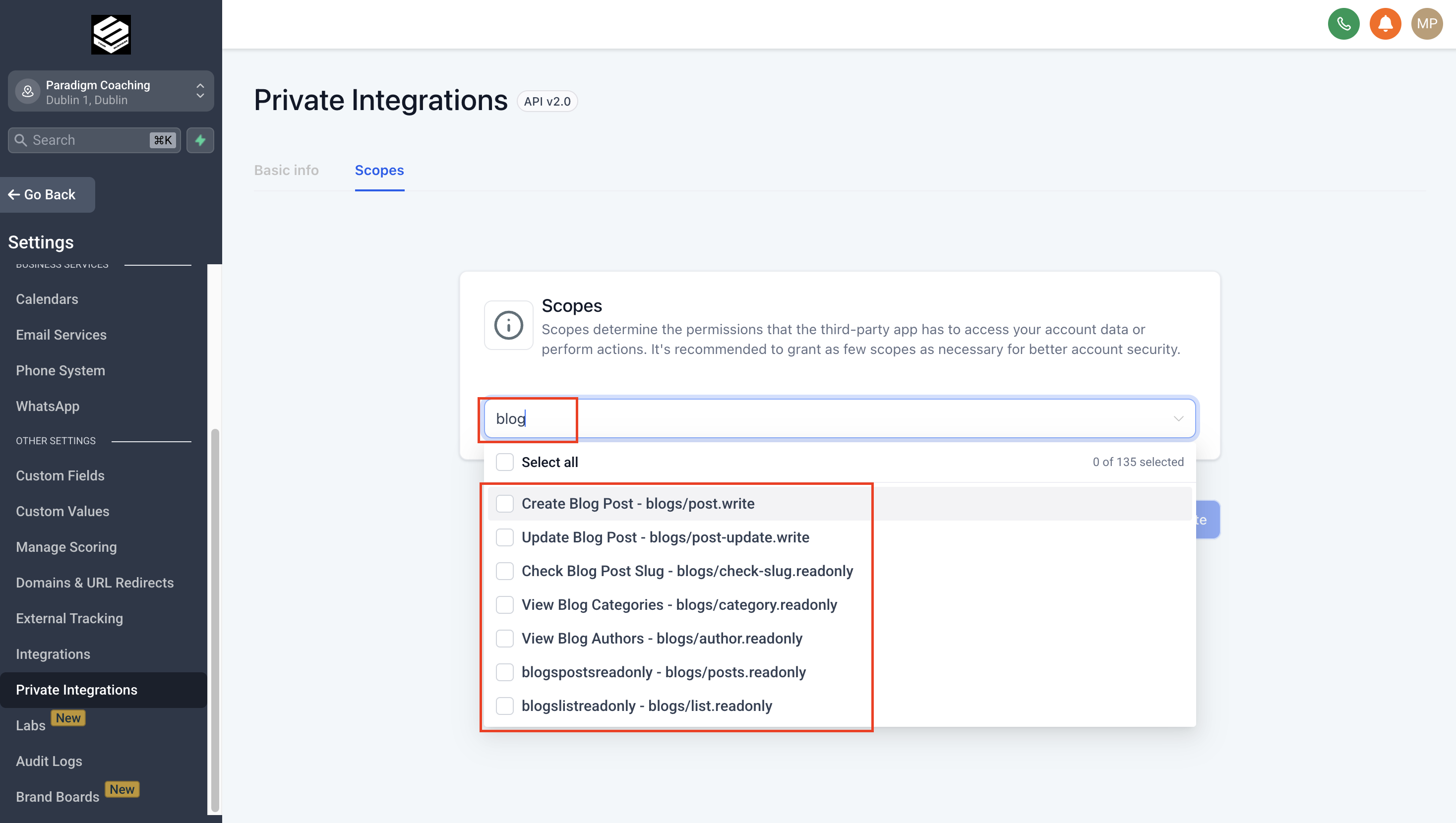
Now select scopes. Search for "blog" and select the following one by one:
Create Blog Post — blogs/post.write
Update Blog Post — blogs/post-update.write
Check Blog Post Slug — blogs/check-slug.readonly
View Blog Categories — blogs/category.readonly
View Blog Authors — blogs/authors.readonly
View Blog Posts — blogs/posts.readonly
View Blog Lists — blogs/list.readonly
Click Create
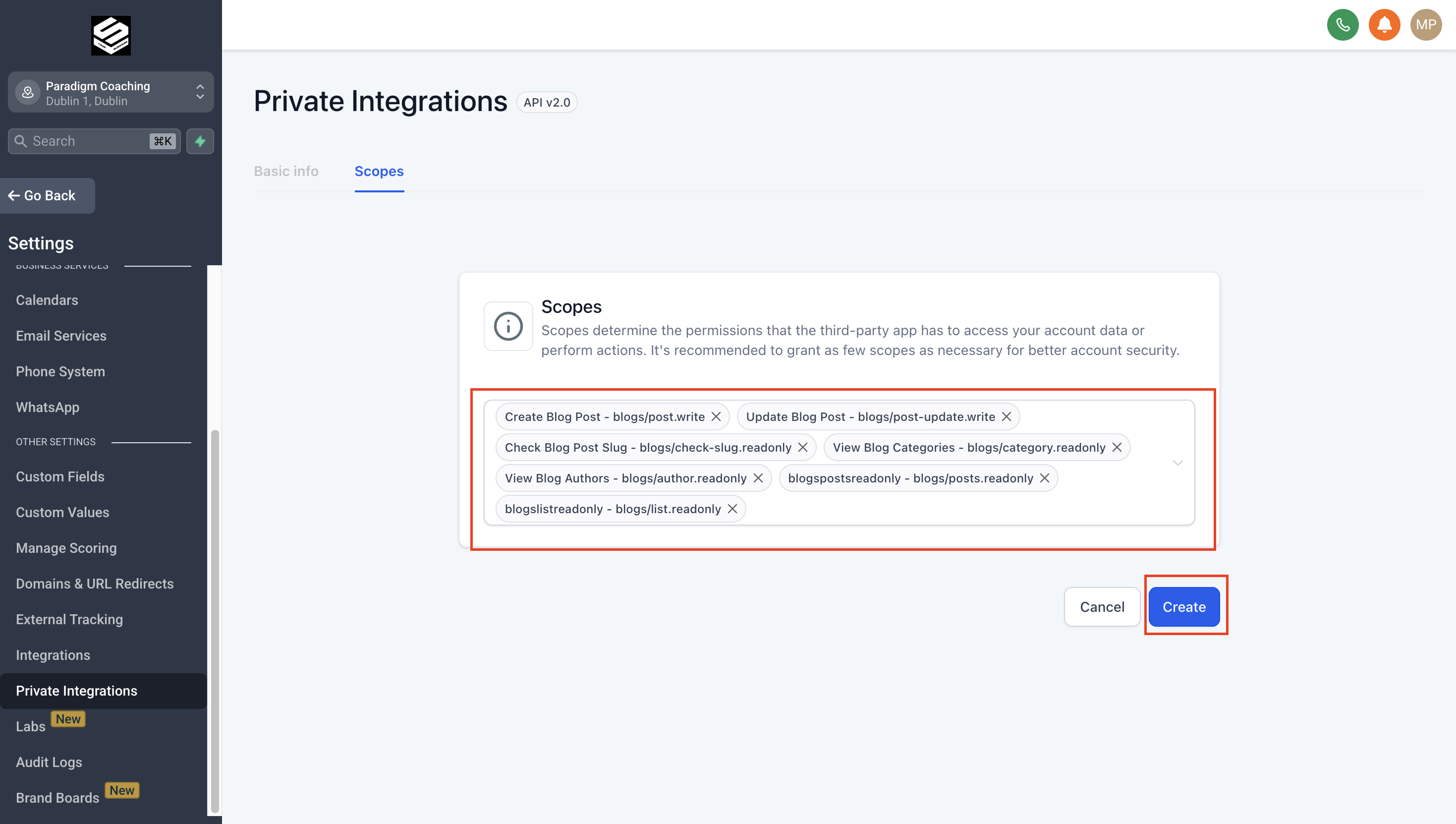
Copy your Private Integration Token (starts with "pit-")
Important: Keep your Private Integration Token secure. Anyone with this token can publish to your blog. Never share it publicly.
3. Get Your Location IDv
In the same left sidebar (still in Settings), look above Private Integrations
Click on Business Profile at the top of the menu
At the top of the page, you'll see Location ID
- Copy the Location ID and save it
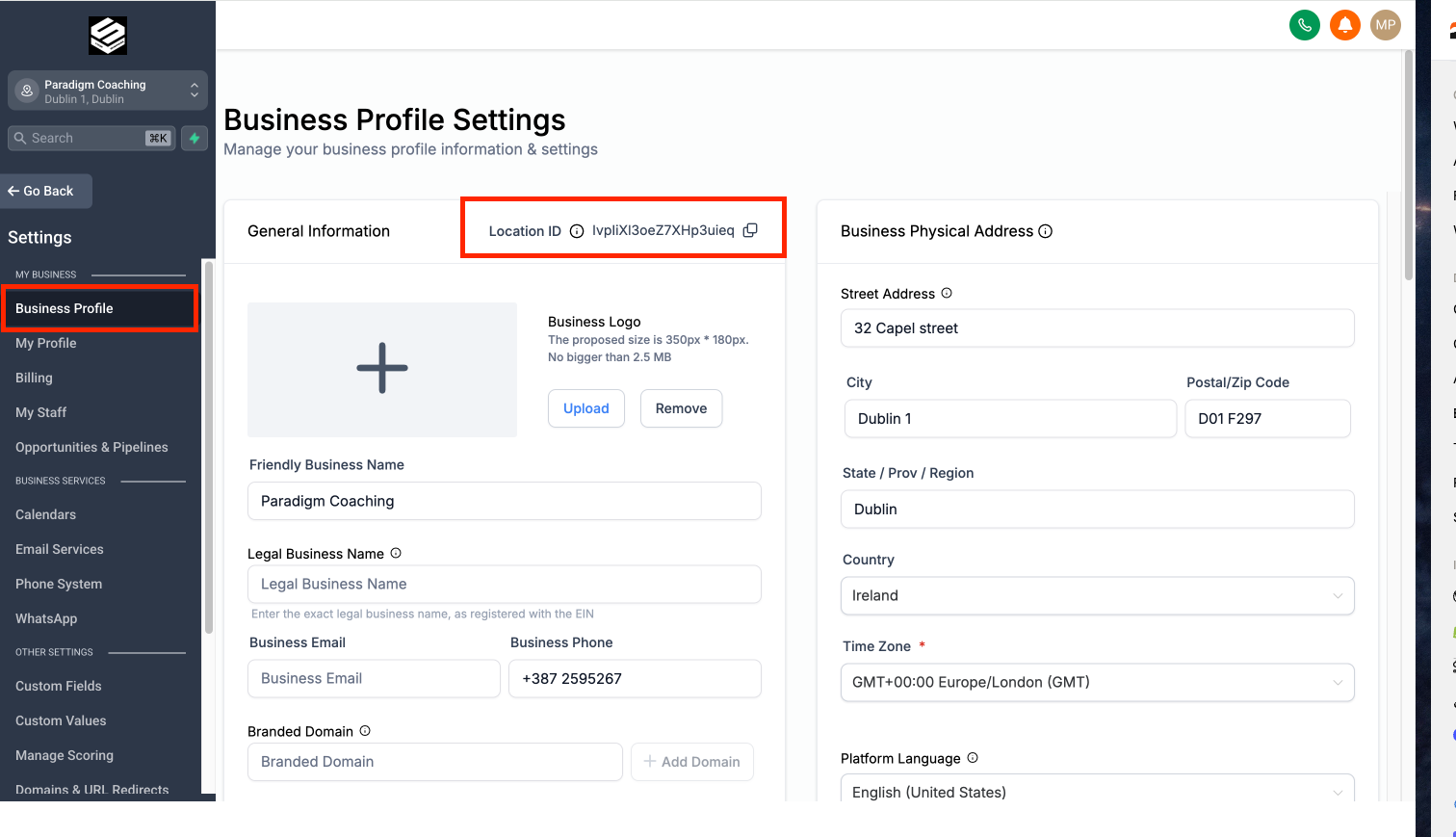
Note: The Location ID is a long alphanumeric string unique to your location.
4. Connect in BabyLoveGrowthv
In BabyLoveGrowth, go to Settings → Integrations
Find GoHighLevel and click Connect
Paste your Private Integration Token (the one starting with "pit-")
Paste your Location ID
Wait a moment — the Blog and Author dropdowns will load automatically
Select your Blog from the dropdown based on your requirements
Select an Author from the dropdown based on your preference (or leave as "Default author")
Choose Publish Status:
Publish immediately — Articles go live instantly
Save as draft — Review articles in GoHighLevel before publishing
The last two options are optional:
Remove first image — Enable this if your blog template already has a featured image display. This prevents the hero image from appearing twice (once in template, once in content).
Remove first H1 heading — Enable this if your blog template already displays the article title as H1. This prevents duplicate titles.
If your blog template doesn't have featured image or title display, you can leave these unchecked or select based on your preference.
Click Connect to save
Success! Your GoHighLevel blog is now connected and ready to receive articles automatically.
Publishing Articlesv
Once your GoHighLevel integration is connected, articles will be published automatically to your blog:
Go to Content Plan in BabyLoveGrowth
- Your generated articles will be published automatically based on your schedule
- Articles appear in GoHighLevel with the status you selected (Published or Draft)
If published, they're live on your blog immediately. If draft, review them in GoHighLevel before publishing
Tips & Best Practices
Best Practicesv
Create your blog in GoHighLevel before connecting BabyLoveGrowth so it appears in the dropdown
- Use 'Draft' status if you want to review articles in GoHighLevel before they go live
- Select an author from your GoHighLevel authors list for proper attribution
- Keep your Private Integration Token secure and never share it
- Check the "Remove first image" option if your blog theme already displays hero images
Troubleshooting & FAQv
Blogs and authors not loading?
Make sure you've entered both the Location ID and Private Integration Token correctly. Wait a few seconds for the dropdowns to populate automatically.
Connection fails with "Invalid credentials"?
Double-check your Location ID (from Settings → Business Profile) and Private Integration Token (starts with "pit-"). Ensure your token has the required blog permissions.
Blog dropdown is empty?
Create at least one blog in GoHighLevel (Sites → Blogs) first. Then refresh the BabyLoveGrowth integration form.
Publishing fails?
Verify that your Private Integration Token has all the required blog scopes enabled. Go back to Settings → Private Integrations, edit your integration, and make sure you've selected all blog-related scopes.
Which scopes do I need?
When creating your Private Integration, search for "blog" and select all blog-related scopes: blogs/post.write, blogs/post-update.write, blogs/check-slug.readonly, blogs/category.readonly, blogs/authors.readonly, blogs/posts.readonly, and blogs/list.readonly
Can I use the same token for multiple locations?
No. Each location needs its own Private Integration Token. Create separate integrations in BabyLoveGrowth for each GoHighLevel location.
Will articles go live immediately?
Only if you choose Publish immediately. Choose Save as draft to review articles in GoHighLevel before publishing.
What if I regenerate my token?
The old token will stop working immediately. Update your integration in BabyLoveGrowth with the new token.
Where do I find my Location ID?
In GoHighLevel, click Settings (left bottom), then Business Profile (above Private Integrations in the menu). The Location ID is displayed at the top of the page.
Can I change the author after connecting?
Yes. Go to Settings → Integrations → GoHighLevel, select a different author from the dropdown, and click Update.
Do I need GoHighLevel Agency account?
No. Both Agency and Location accounts work. You just need access to create Private Integrations and manage blogs.
Need more help?
Contact support via the bottom-right chat icon in BabyLoveGrowth.