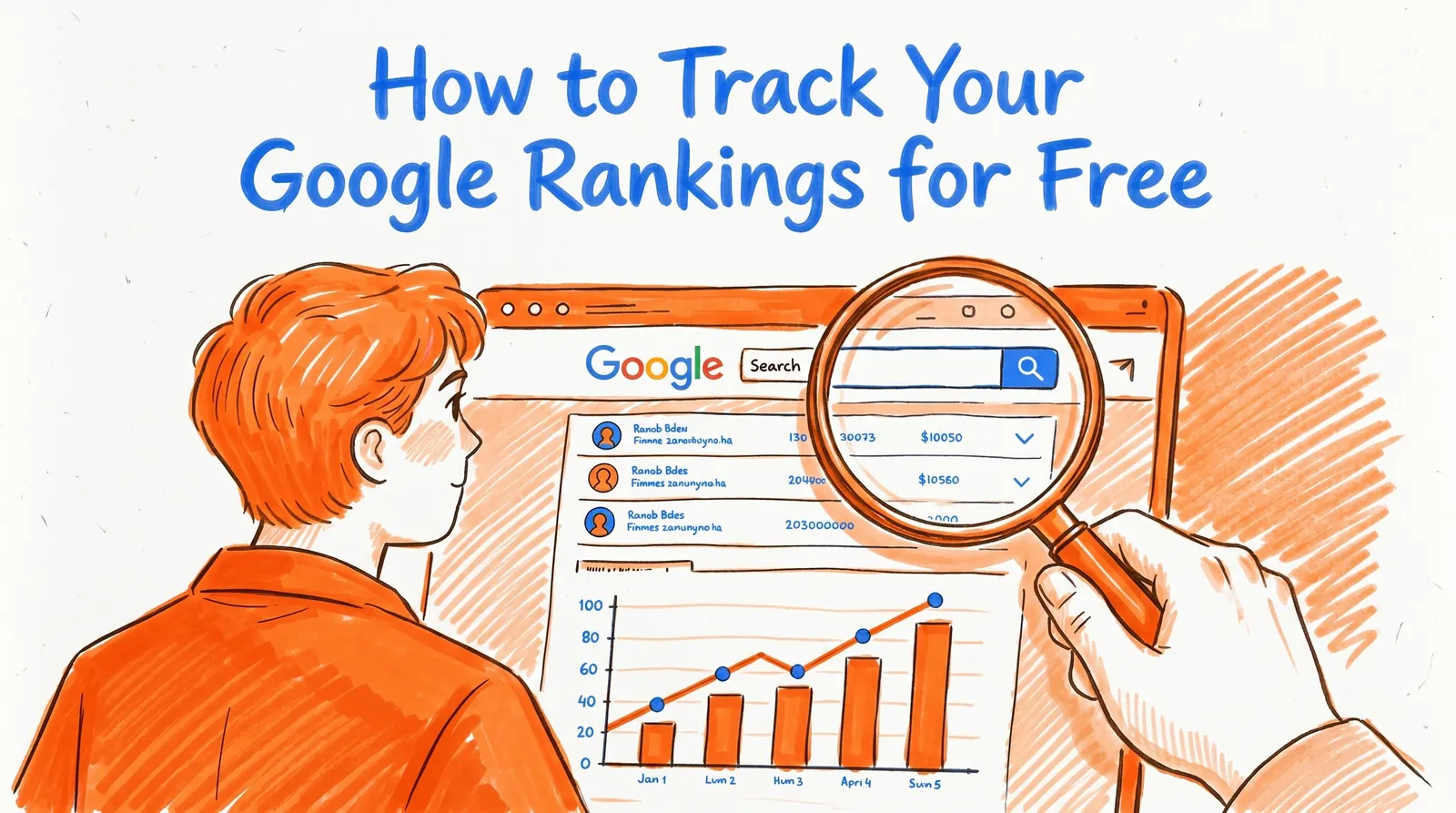
How to Track Your Google Rankings for Free (2026 Guide)

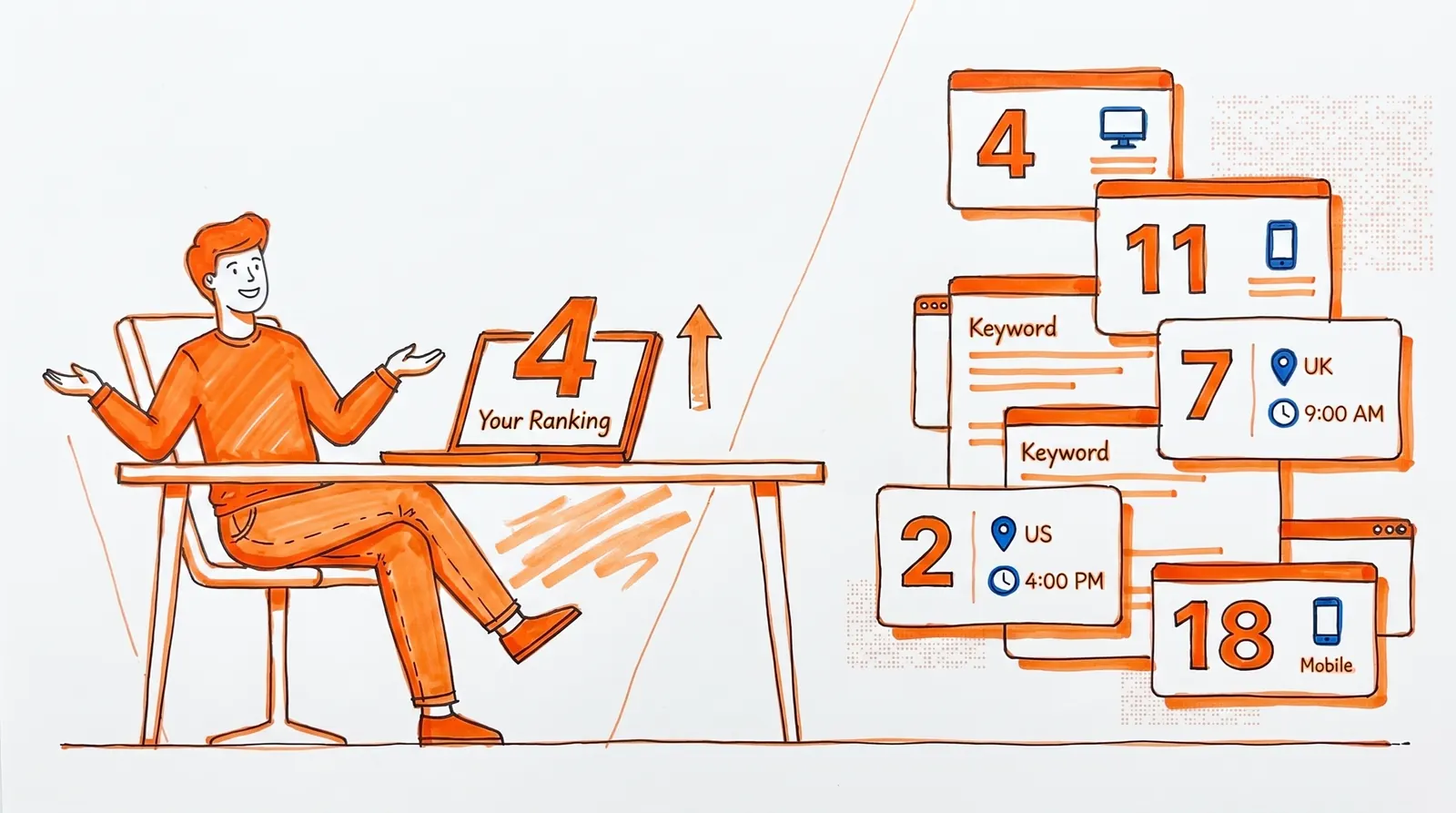
If your "rank tracking" routine consists of opening Google, typing your keyword, spotting your page at position 4, and writing that down, you're not really measuring rankings. That single search result reflects one version of Google, on one device, in one location, at one moment in time. It tells you almost nothing about how your pages perform across the thousands of real searches that actually matter.
True rank tracking measures how your pages appear across many real impressions and then ties that visibility back to clicks and business outcomes. The encouraging part? In 2026 you can build a fully reliable system for this without paying a cent for software.

This walkthrough covers the full free stack: Google Search Console as the measurement core, Looker Studio for dashboards, Google Analytics 4 for what happens after the click, and Google Business Profile Performance if local search is part of your business. Everything below is pulled directly from Google's own documentation as of March 2026, including newer Search Console features such as weekly and monthly chart views, branded vs. non-branded query splits, and custom annotations.
By the time you finish reading, you'll have a tight 15-minute weekly check-in that surfaces what's growing, what's slipping, and what you should fix next.
Why Most Rank Tracking Approaches Hand You Bad Data
People who search "how to track my Google rankings for free" usually aren't looking for a polished chart. They want answers to five very specific questions:
- Is my SEO actually moving the needle?
- Which pages and queries are climbing or sinking?
- Where should I focus my time first?
- Can I do this without buying expensive tools yet?
- How do I make sure I'm not lying to myself with bad data?
That fifth question is the one most articles brush past, and it's probably the one that matters most. Bad data doesn't just leave you in the dark. It convinces you that the wrong direction is the right one.
Here's the principle to anchor everything to: a ranking only matters because it produces visibility, visibility produces clicks, and clicks produce business results. The point of rank tracking isn't to admire numbers on a dashboard. The point is to build a simple feedback loop that shows you where Google is rewarding your work, where you're losing ground, and which fix will create the biggest lift.
The Best Free Tools for Tracking Google Rankings in 2026
For the vast majority of sites, this combination delivers the most useful information for zero software spend:
| Tool | What It Does | Cost |
|---|---|---|
| Google Search Console | First-party data on rankings, impressions, clicks, CTR, and avg. position | Free |
| Looker Studio | Visual dashboards and historical reporting using GSC data | Free |
| Google Analytics 4 | Post-click behavior: engagement, conversions, revenue | Free |
| Google Business Profile | Local discovery and engagement data on Search and Maps | Free |
| Search Console API | Bulk data export, up to 50,000 rows/day per property | Free (with quotas) |
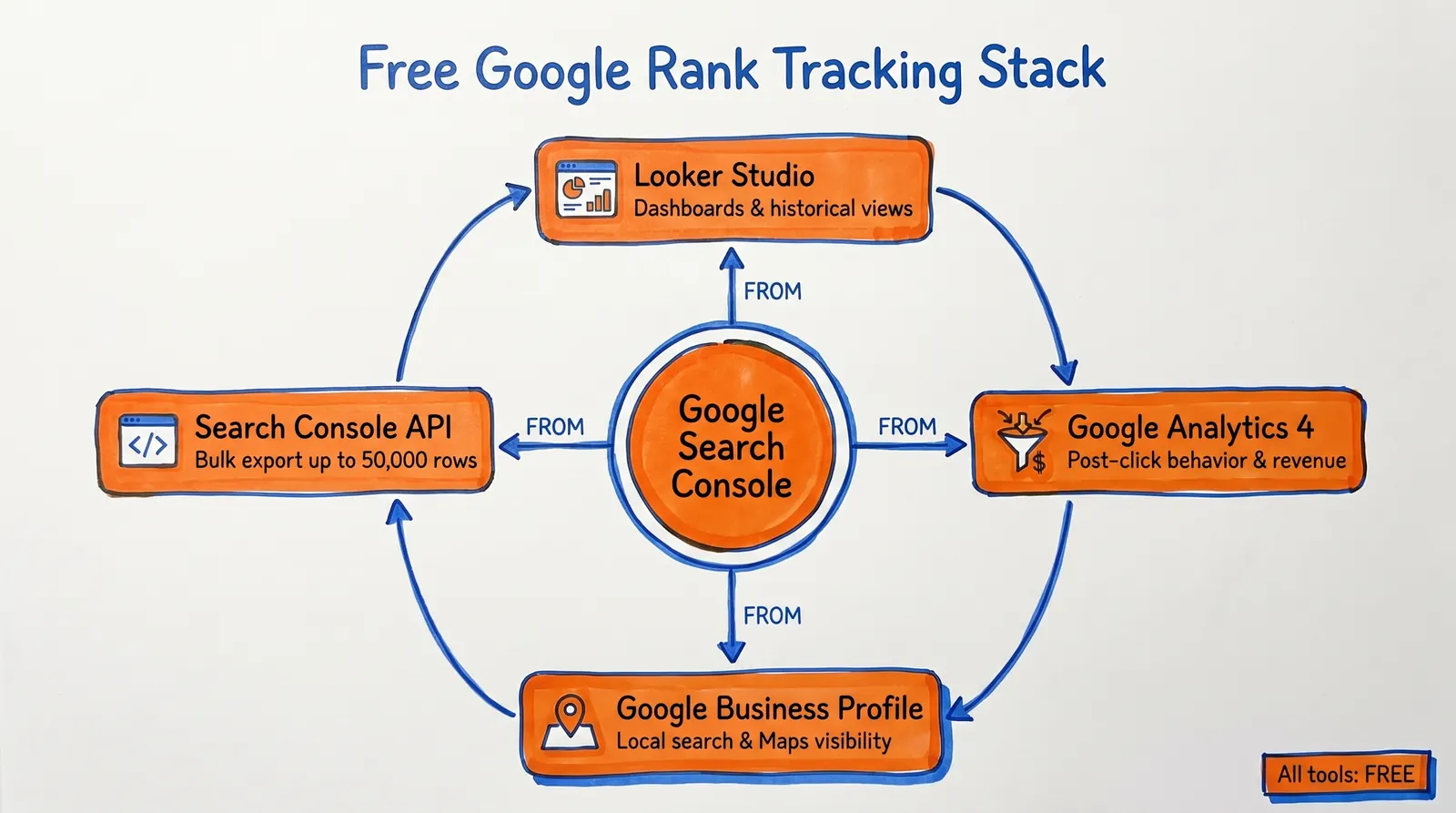
The point most guides gloss over: Search Console is the canonical source for how your site performs in Google Search. Everything else, whether that's Looker Studio dashboards, GA4 reporting, or third-party spot checkers, is built on top of that core. Per Google's own description, Search Console exists specifically to measure your site's search traffic and performance — impressions, clicks, and position included.
Begin with Search Console. Layer Looker Studio on once you want a more polished view. Bring in GA4 when you need to connect rankings to revenue. That's the order to follow.
Search Console is Google's free, first-party tool for understanding how your site shows up in search. The screenshot above is the official product page — that colorful gauge on the right hints at the kind of performance visibility you'll get once you're set up.
What a "Google Ranking" Actually Means in 2026
Before you stare at a single metric, it's worth knowing what it represents. This is the spot where most people quietly mislead themselves.
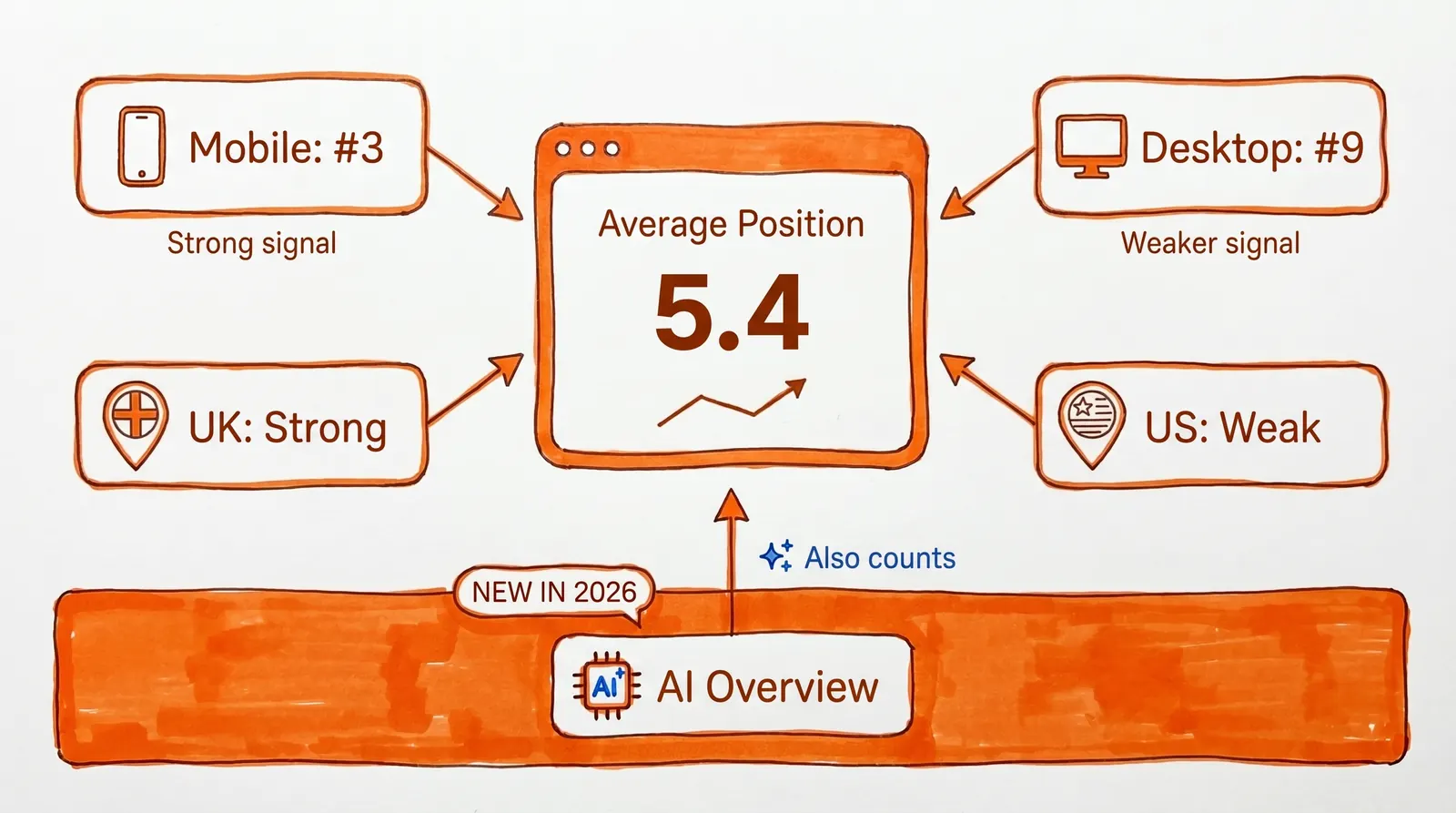
A ranking is not a fixed number permanently glued to your page. Google's own help center is direct about it: results vary based on time, place, device, and recent search history. The "average position" displayed in Search Console is the average topmost position at which any page from your site appeared across all impressions for that query.
Think about what that actually implies. If your page sits at position 3 for some mobile searches and position 9 for some desktop searches, Search Console may show you a single blended average. If you rank well in Germany but poorly in Spain, the combined number quietly hides both stories. The metric is genuinely useful — but only once you slice it the right way.
How AI Overviews Change Rankings in 2026
There's a genuinely new wrinkle to rankings in 2026 that a lot of guides haven't caught up with yet. Google has confirmed that traffic from AI Overviews and AI Mode is folded into Search Console's standard Web search reporting. An AI Overview occupies one position in the results, and any link inside that overview shares the same position value. Follow-up questions inside AI Mode can even count as brand-new queries.
So if you still picture Google rankings as "ten blue links in a list," your mental model is already out of date. Your pages may be picking up impressions and clicks from AI-driven surfaces that didn't exist twelve months ago, and Search Console is recording all of it inside the same Web search numbers you're already reviewing.
Earning visibility inside AI Overviews tends to come down to topical authority — how comprehensively your site covers a subject. It's a longer-horizon SEO bet that's worth starting on today.
How to Set Up Free Google Rank Tracking, Step by Step
1. Set Up Google Search Console Properly
Go with a Domain property unless you have a very specific reason not to. Per Google's verification guide, Domain properties automatically cover every subdomain and protocol. URL-prefix properties are narrower and require separate verification for each variation (https, http, www, non-www, individual subfolders).
Why is that important? Verifying only one slice of your site means you're measuring only one slice of reality. A Domain property closes off most blind spots in one move.
2. Submit Your Sitemap
According to Google Search Central, pages can be discovered without a sitemap, but submitting one through Search Console can speed discovery and gives you a single place to monitor sitemap-related signals. Building a sitemap is far easier than it sounds, and it's a foundation step that should happen before rank tracking really makes sense.
This is one of those steps that's easy to skip and important not to. If your rankings aren't moving because pages aren't getting found or indexed, no amount of rank tracking will rescue you. Discovery comes first.
3. Turn on All Four Metrics in the Performance Report
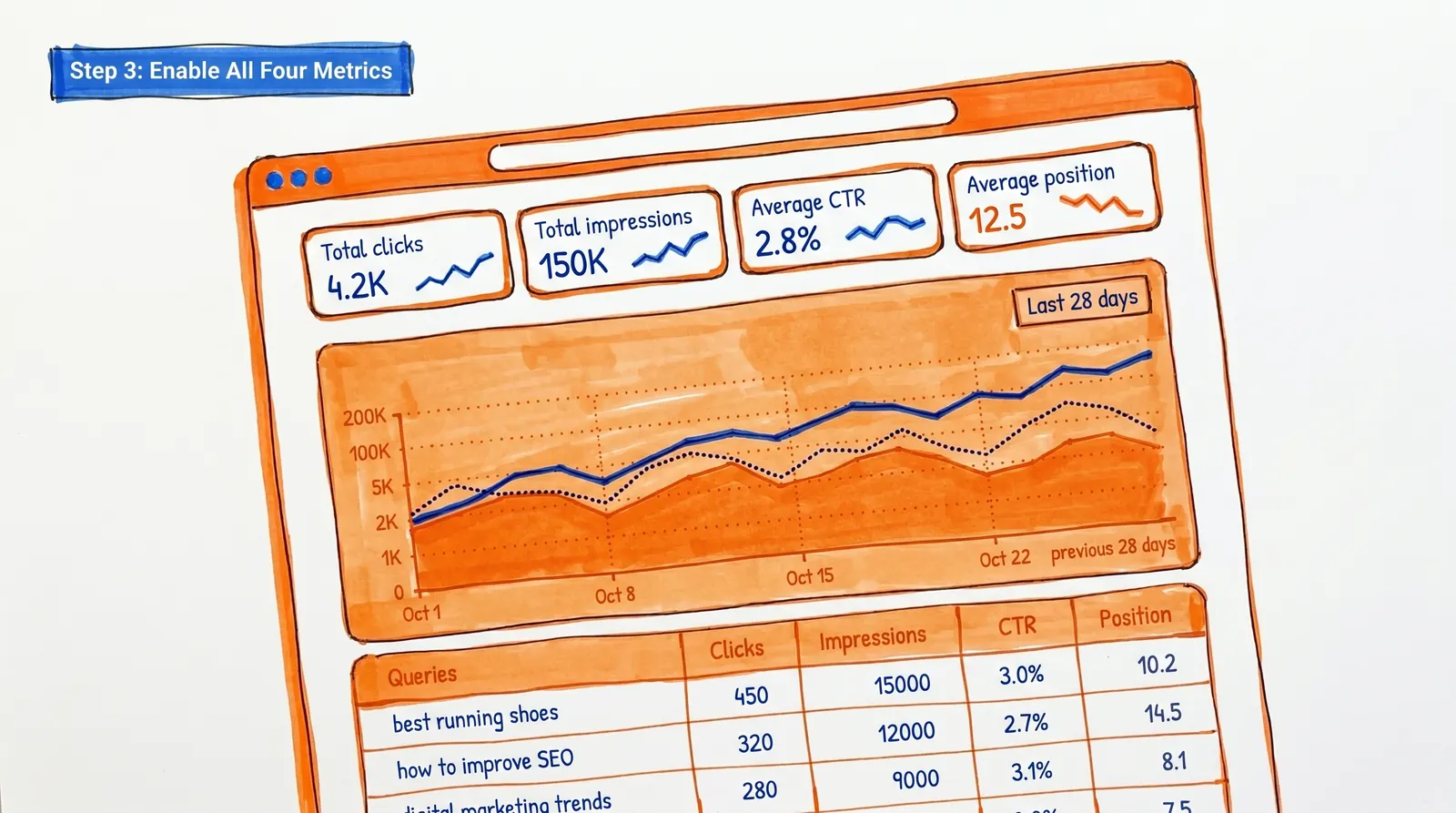
Inside Performance > Search results, make sure all four metrics are toggled on:
- Total clicks (how many people actually visited your page)
- Total impressions (how often your page appeared in results)
- Average CTR (the share of impressions that turned into clicks)
- Average position (where your page typically appeared)
Per Google's Performance report documentation, the default range is the last three months. You can adjust the date range, compare windows, and use the 24-hour view for fresh hourly data (which Google flags as preliminary). The report supports hourly, daily, weekly, and monthly granularity.
Useful starting comparisons:
→ Last 28 days vs. previous 28 days for fast trend reads
→ Last 3 months vs. previous 3 months for more meaningful shifts
→ Same window last year for seasonal businesses
4. Filter and Segment Your Search Console Data
This is where Performance shifts from "neat" to "actionable." Search Console lets you group and filter by query, page, country, device, and more.
The filters that pay off the most for most teams:
- Query: Which keyword pulled your site into the results?
- Page: Which URL is gaining or shedding impressions?
- Country: Are rankings shifting in a market you care about, or one you don't?
- Device: Is mobile lagging behind desktop?
- Branded vs. non-branded: Are you genuinely growing discovery, or just collecting more searches for your company name?
The branded/non-branded toggle is a meaningful upgrade for 2026-style reporting. It splits the two automatically. That said, Google notes the classification is AI-generated, can occasionally mislabel queries, and isn't available for sub-properties or low-impression sites.
5. Use Weekly and Monthly Views to See the Real Trend
Google rolled out weekly and monthly chart views for Search Console in December 2025, and they're easily one of the most useful additions in years. Daily data is noisy — weekends, holidays, news cycles, and random variance can pull you into overreacting to dips that don't actually mean anything.
Weekly and monthly views smooth those bumps out so the underlying trend becomes obvious. Google explicitly notes how this helps when you're comparing periods that don't line up cleanly across weekends.
When to use each view:
- Daily: investigating a launch, migration, or sudden traffic dip
- Weekly: your standard operating review (the sweet spot for most sites)
- Monthly: stepping back to see the picture across a quarter or longer
6. Use Search Console Annotations to Mark What Changed
Annotations are one of the most under-used free features in Search Console. According to Google's documentation, there are two kinds: system annotations (which Google adds for reporting issues) and custom annotations (which you create yourself for your own events). Right-click the chart, add a note up to 120 characters, and pin it to a date.
Use annotations for things like:
- Publishing a major article or content cluster
- Updating title tags across a template
- Resolving an indexing issue
- Site migrations or domain swaps
- Core Web Vitals improvements
- Notable PR pushes or backlink wins
This converts your chart from "numbers that moved" into "numbers that moved because of something." Your future self, six months out, will be glad you kept the log.
7. Build a Free Rank Tracking Dashboard in Looker Studio
Search Console's native interface is solid, but Looker Studio is where your free setup starts to feel like a real reporting platform.
Google's Looker Studio connector lets you pick either Site Impression or URL Impression as the data source. A single source can only use one of those modes, so if you want to view both side by side you'll need two sources combined inside the same report. Privacy filtering may also produce blank query rows in your reports — that's normal platform behavior, not a bug.A clean free dashboard typically includes:
- Non-branded clicks over time
- Non-branded impressions over time
- Average position by page group
- Top gaining queries (largest impression or click jumps)
- Top losing queries (largest drops)
- Top gaining and losing pages
- Device split (mobile vs. desktop vs. tablet)
- Country split
- Conversions from organic landing pages (via GA4)
The real value of Looker Studio is that it lets ranking data and business outcomes live in the same view, instead of forcing you to flip between tabs. Google's own Search Central guidance suggests pairing Search Console and Analytics data for SEO analysis.
8. Use the Search Console API to Track More Than 1,000 Keywords
Once your site grows past a few hundred pages, the Search Console interface starts to feel cramped. Google's documentation confirms the Performance report's query table caps out at 1,000 top queries in the UI, while the Search Console API can return up to 50,000 rows per day per search type per property. The API is free, with quota limits. Google also recommends querying one day at a time and notes that performance data is generally available after two to three days.
If you're technical (or someone on your team is), the API is the cleanest path to building a longer historical archive and dodging the UI ceiling.
If you're not technical yet, that's completely fine. Start with Search Console and Looker Studio. Most sites don't need API access on day one.
How to Read Google Ranking Data Without Drawing the Wrong Conclusions
Setting up the tools is the easy half. The hard half is interpreting the data correctly so you don't make bad calls based on what you see.
Google itself gives a helpful cue here. In its traffic-drop debugging guide, Google states that you shouldn't fixate on absolute position. Impressions and clicks are ultimately the better measure of success. Position is still useful, but mostly as a diagnostic, not a scoreboard.
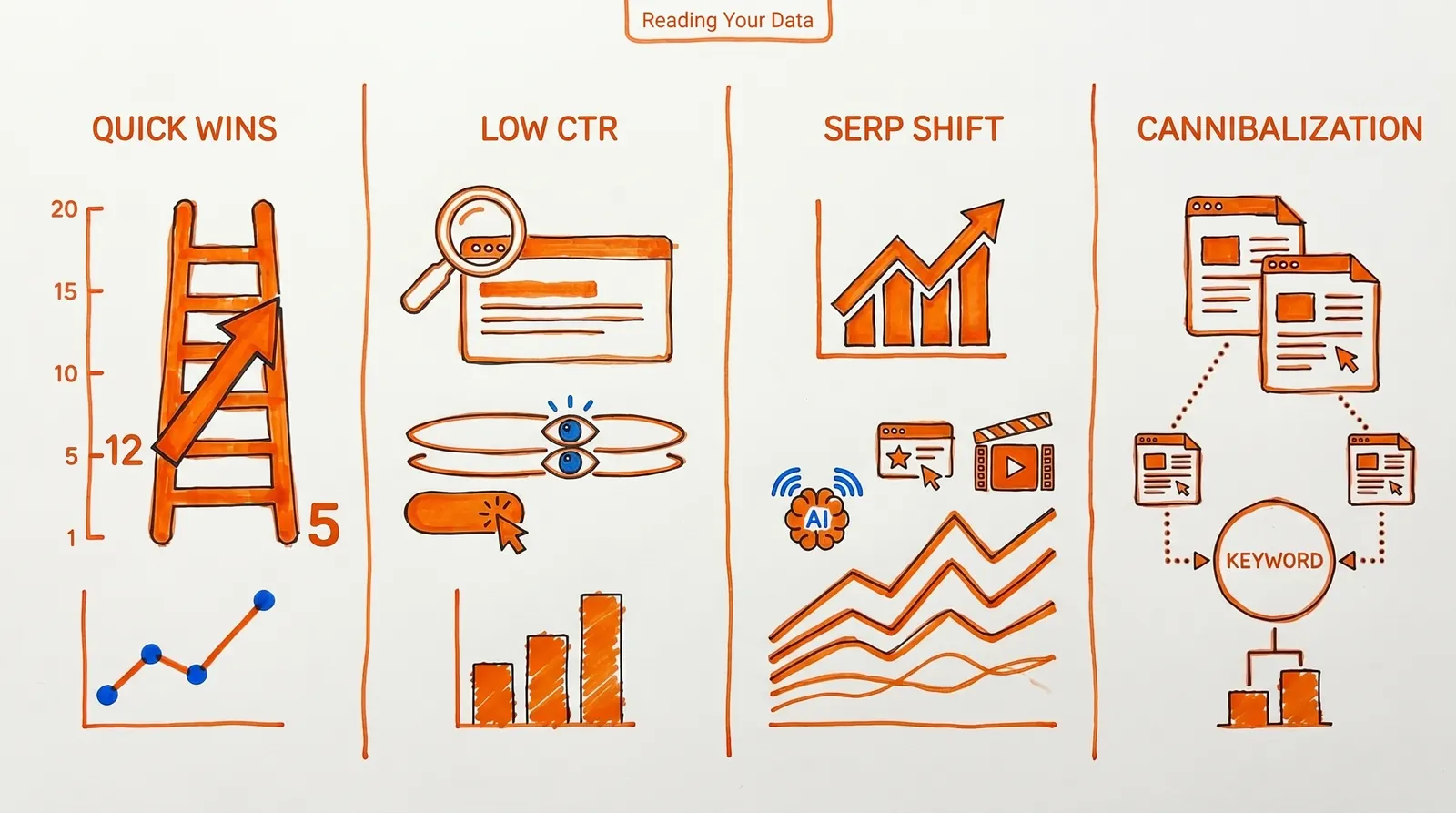
Here's how to read the most common patterns:
Where to Look First: Pages Sitting in Positions 5 to 20
This is where a surprising number of quick wins live, and it's the spot you should check before anything else each week.
Why? Because Google is already evaluating your page. You're showing up enough to count, but not strongly enough to capture the bulk of the clicks. The lever to pull is usually one or more of these:
- Sharper title tag and meta description framing
- More depth and topical coverage on the page itself
- Tighter alignment with what the searcher is really looking for
- Better internal linking pointing into the page
- Updated examples, refreshed statistics, or newer information
- A single dedicated page for that keyword (resolving cannibalization where multiple pages compete)
A page parked at position 12 with 2,000 impressions last month is often a better optimization target than a page at position 2 that you're already comfortably winning.
High Position with a Low CTR: Fix the Title and Meta Description
This pattern usually signals that the result is being seen but not chosen. Your page is showing up, but something about the title, description, or rich snippet isn't compelling enough relative to the competing results.
Google's Performance report documentation explicitly recommends auditing low-CTR pages as candidates for title and snippet rewrites. A page sitting at position 3 with weak CTR is a packaging problem, not a ranking problem. Reworking the title and description is usually the quickest fix.Going from a 2% CTR to a 4% CTR on a page that pulls 10,000 monthly impressions doubles the traffic without nudging the actual ranking.
Impressions Climbing While Clicks Stay Flat (SERP Features)
This pattern can be sneaky. The numbers look stable on the surface, but clicks aren't growing alongside the impressions.
What's usually happening: the query itself may be growing, or the SERP layout is changing. More SERP features (AI Overviews, rich results, video carousels, map packs, knowledge panels) are pulling attention even when your average position holds steady. In 2026, keep in mind that Google recommends analyzing different search types separately when debugging drops, because shifts in SERP features can reshape click behavior without changing your position.
Spotting Keyword Cannibalization in Search Console
If you notice multiple pages on your own site swapping impressions and clicks for the same query family, you may not have a single clearly strongest page on that topic. That can be fine (Google is rotating between a few relevant URLs), or it can mean your pages are competing with each other instead of consolidating authority into one.
The remedy is usually picking one primary page, beefing it up, and either redirecting or merging the weaker pages into it.
Why Your Search Console Data Looks Off (But Probably Isn't)
This is the section most ranking guides skip altogether, and it's exactly why people lose faith in otherwise good data.
Why Search Console Only Surfaces Your Top 1,000 Queries
Google's documentation confirms the Performance report's query table caps at 1,000 top queries. Rare queries are excluded for privacy reasons.So if your gut says "my site ranks for way more than this," you're almost certainly right. The UI is a window, not the whole house.
Why the Table Totals Don't Match the Chart Totals
This trips people up constantly. Google explains that anonymized queries are dropped from the table but included in the chart totals unless you actively filter by query. Privacy filtering and daily row limits are the main reasons the totals diverge. Inside Looker Studio, those privacy-filtered queries can even surface as blank rows.
When the math doesn't quite add up, it's a platform behavior, not a flaw in your SEO.
Why Duplicate URLs Show Zero Clicks
Per Google's Performance data documentation, most data is attributed to the canonical URL, not the duplicate. So your analytics may show users landing on one URL while Search Console credits a different canonical. The URL Inspection tool is the fastest way to confirm what Google considers the canonical for any given page.
This is a particularly common blind spot for sites with parameterized URLs, separate mobile pages, or sloppy canonical configurations. If a page seems to have mysteriously vanished from Search Console, check the canonical assignment before you spiral.
A 15-Minute Weekly Google Rank Tracking Routine
You don't have to obsess over rankings every day. Google's own getting-started documentation explicitly states there's no need to log in daily — Search Console will email you when it spots new issues. For most sites, a weekly cadence is plenty, unless you're mid-launch, mid-migration, or in the middle of a traffic crisis.
Here's the routine:
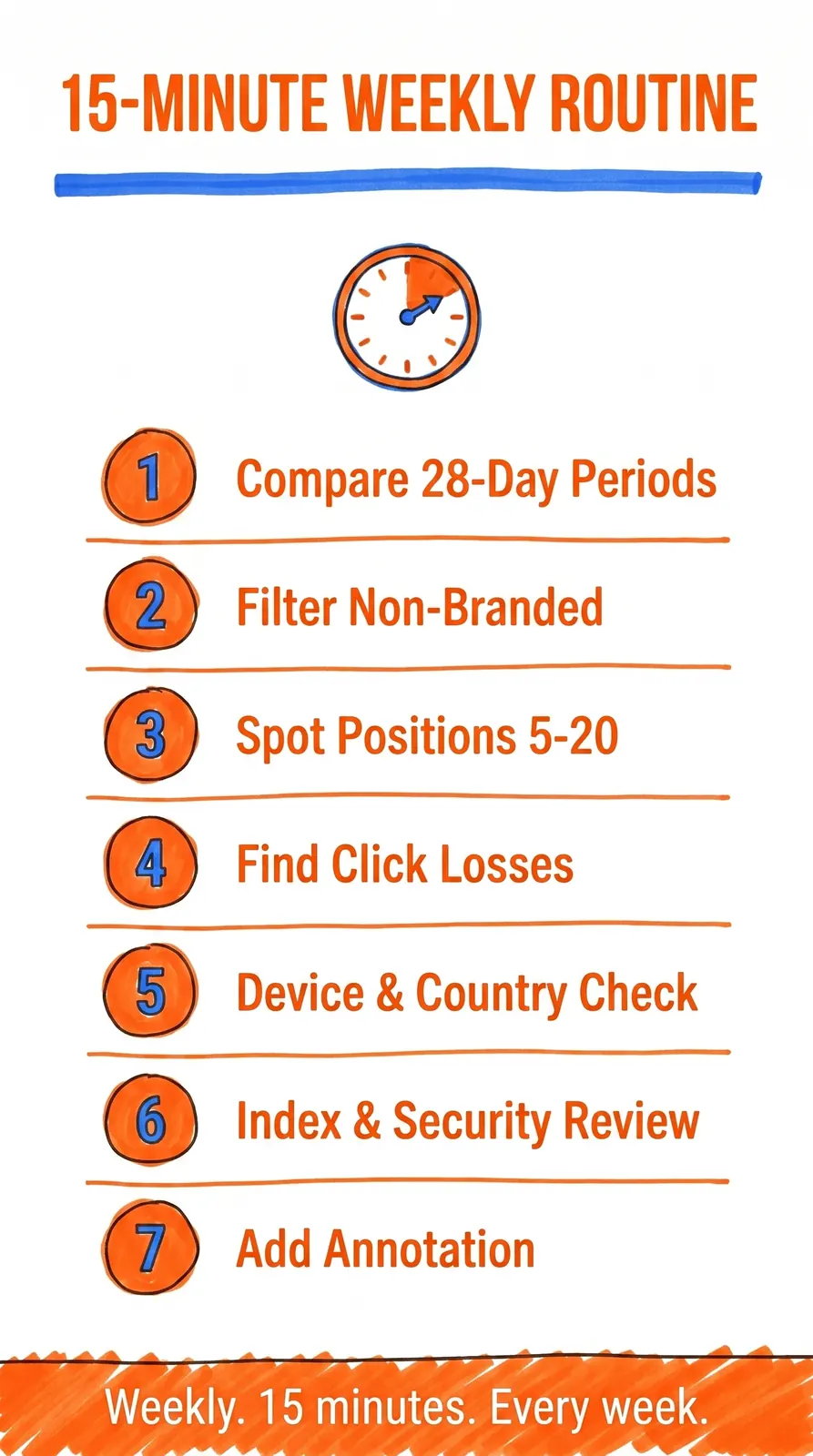
Step 1. Compare last 28 days vs. the previous 28 days inside the Search results report. This becomes your baseline trend.
Step 2. Switch to non-branded queries so you're measuring genuine discovery, not just people who already know your brand.
Step 3. Sort by impressions and look for terms in roughly positions 5 to 20. Those usually represent your best near-term upside.
Step 4. Sort pages by click loss and inspect the URLs that fell hardest. Google's traffic-drop guide recommends looking for patterns across the impacted pages.
Step 5. Apply device and country filters if the loss looks uneven. A site can be performing fine globally yet still have a mobile-only or country-specific issue.
Step 6. Check indexing status, manual actions, and security issues if the drop is sudden or sharp.
Step 7. Drop in an annotation if you published, restructured a template, fixed a bug, or launched a campaign during the week.
That's enough to keep tabs on rankings without making it a second job. It runs about 15 minutes and keeps your attention on what matters: trends and actions, not daily noise.
What to Check When Rankings Drop
When rankings start sliding, don't leap straight to "Google penalized us." Diagnose first. Run through these checks in order — most drops have boring causes that become obvious once you know where to look.
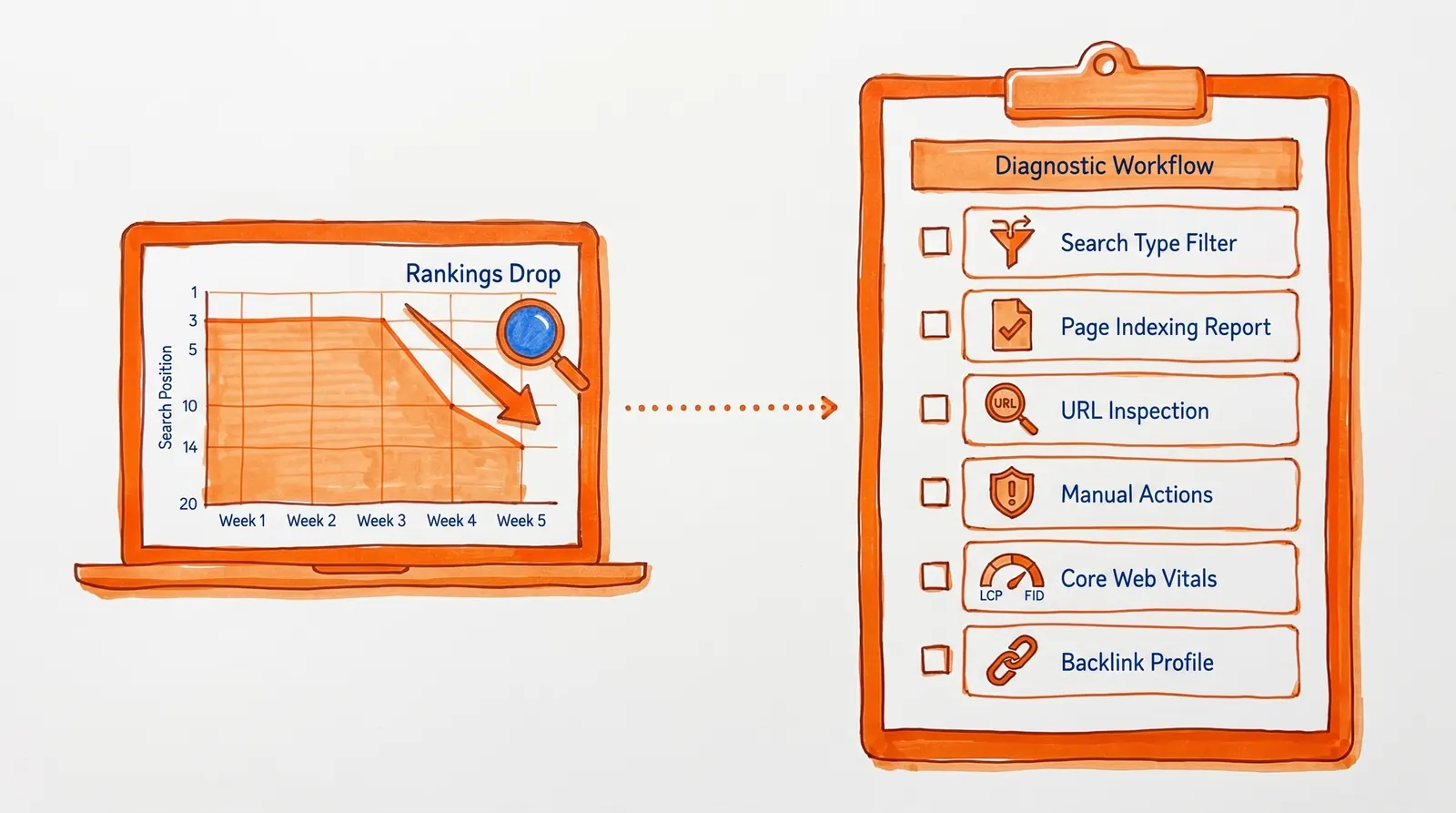
Filter by Search Type to Pinpoint Where the Drop Happened
Google recommends reviewing each search type on its own. A drop may be confined to Web, Images, Video, or News. If your business depends on image SEO, for instance, what looks like a "ranking drop" might really be an image-search problem rather than a web-search one.Confirm Your Pages Are Still in the Index
The Page Indexing report shows indexed and non-indexed URLs along with the reason a page isn't indexed. If important URLs slipped into a non-indexed state, your rankings vanish because the pages are no longer eligible at all.
This is worth checking early. Plenty of "ranking drops" aren't ranking drops. The pages simply stopped being indexed.
Use URL Inspection to Diagnose Individual Page Drops
The URL Inspection tool reveals Google's indexed version of a page, whether it can be indexed, crawl details, the chosen canonical, and even a live test. You can also request indexing right from there. If a single important page fell off a cliff, inspect that specific URL before you change anything else.
Look for Manual Actions and Security Issues
Google says the Manual Actions report lists problems that can cause pages or whole sites to rank lower or be dropped from results entirely. The Security Issues report covers hacked content, malware, phishing, and similar harmful conditions that can trigger warnings or suppress visibility.
These are rarer than content or indexing issues, but they're high-impact when they hit. Check early so you're not chasing the wrong cause.
Check Core Web Vitals When the Drop Is Sitewide
Google's Core Web Vitals report is built on real-world field data and groups your URLs by performance status. It's not a per-keyword rank report, but it's a useful site-health signal when rankings and user experience seem to be sliding together. Slow pages sometimes lose both positions and patience.
Check Your Backlinks Inside Search Console
Search Console's Links report is good for a free backlink sanity check, but Google notes the data is a sample, not a complete index, and some tables are limited to 1,000 rows. Use it directionally, not as your full backlink database.
The Biggest Rank Tracking Mistakes to Avoid in 2026
Treating Manual Google Searches as Rank Tracking
Google explicitly says you might not see your own site when you manually search the same query, because results vary by time, place, device, and recent search history. Manual checks are fine for a quick gut check. They're a terrible substitute for a real measurement system.Chasing Position Numbers Instead of Outcomes
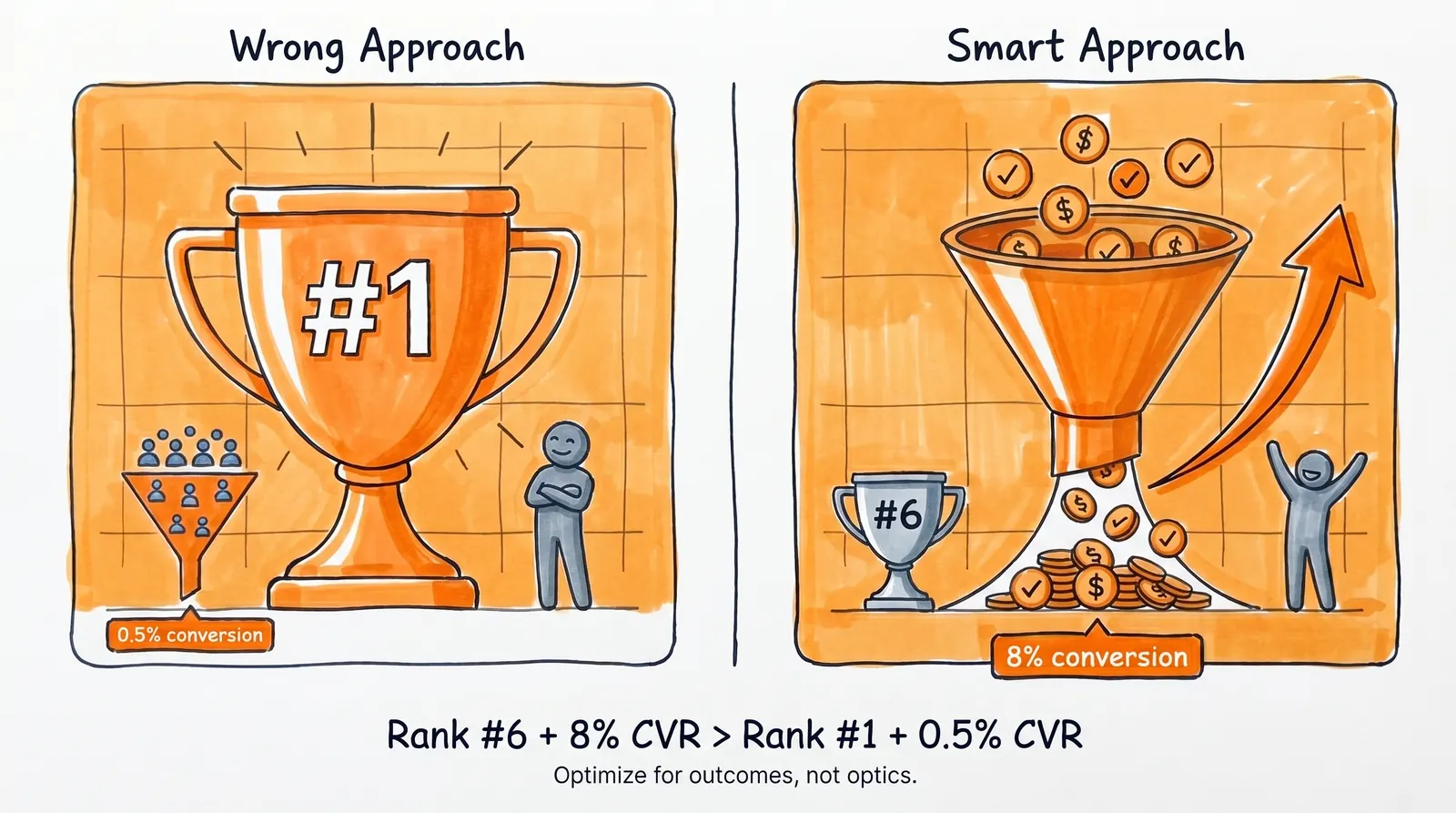
Position matters, but Google itself says not to fixate on absolute position. Clicks and impressions are the better north star. And conversions matter even more than either.
Mixing Branded and Non-Branded Traffic in Reports
A brand campaign, a podcast feature, or a PR moment can spike branded searches. That doesn't mean your non-branded SEO is improving. Per Google's Performance report, the branded vs. non-branded filter exists exactly so you can separate those signals. Use it.
Ignoring Row Limits and Privacy Filtering
If you don't understand why certain rows are missing from the tables, you'll misread your own reports. UI limits, anonymized queries, and blank rows in Looker Studio are normal behaviors, not personal attacks on your data. Knowing these mechanics keeps you from making decisions on incomplete information.
Confusing Web Search Rankings with Google Maps Rankings
Your website can rank poorly in web search while your Google Business Profile shines on Maps — or vice versa. Website SEO and local profile visibility overlap, but they're distinct. Google Business Profile Performance reports views, searches, and interactions across Search and Maps. Search Console reports your website's web search performance. If you're a local business, use both.
Tracking Rankings Without Keeping a Change Log
If you publish content, restructure your site, rewrite titles, and patch technical issues without recording any of it, your chart becomes nearly impossible to read. Annotations solve this for free.
Use them. Future-you will thank present-you.
Turning Ranking Data Into Real SEO Action
The free rank tracking system above is excellent at telling you what's happening. It tells you which keywords are climbing, which pages are slipping, where Google is testing your content, and where you're leaving clicks on the table.
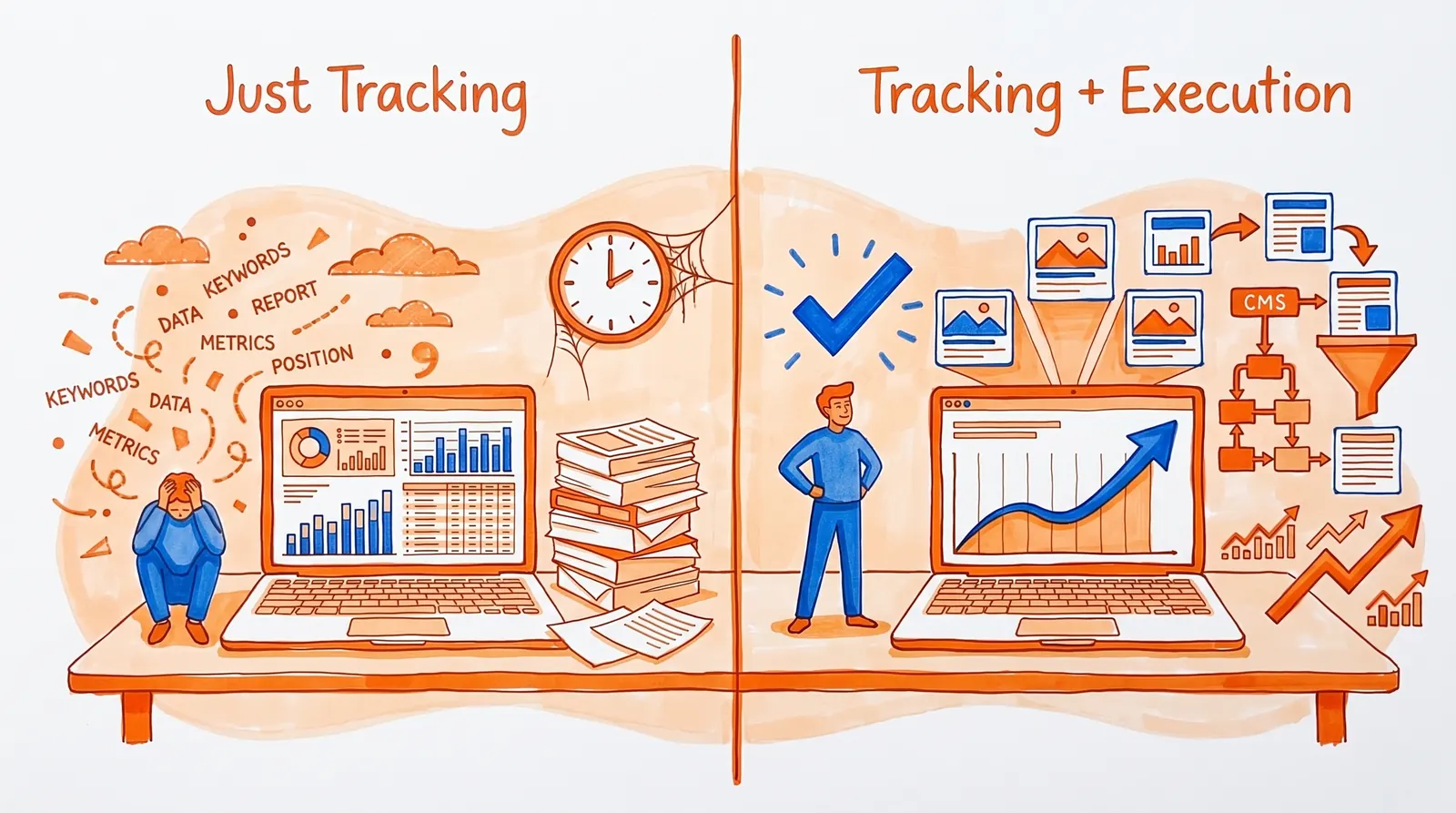
But data without action is just numbers on a screen.
The bottleneck for most teams isn't tracking. It's execution. You already know you should publish more content targeting those position 5-20 opportunities. You know you should refresh pages with declining CTR. You know you should fix technical issues and build authority. But actually doing all of that, consistently, at a pace that moves the needle? That's where most SEO programs get stuck.
Frequently Asked Questions
What's the best free way to track Google rankings?
For your own site, Google Search Console. It's Google's first-party view of how your pages perform in Google Search and includes clicks, impressions, CTR, and average position. Most free workflows should start there and add Looker Studio and GA4 as you need more depth.
Why does Search Console show a different ranking than what I see when I search manually?
Because the result you see in your browser is a single snapshot. According to Google's Performance report documentation, search results vary by time, place, device, and recent search history, while Search Console reports the average topmost position across all impressions. A manual check is one data point. Search Console is an aggregate of thousands.
Does Search Console capture AI Overview or AI Mode traffic?
Yes, just not as a separate standalone report. Per Google's AI features documentation, sites that surface in AI Overviews and AI Mode are counted inside Search Console's overall traffic under the regular Web search type. AI Overviews count as a single position, and links inside the overview share that same position.
Can I track more than 1,000 keywords for free?
Yes — but not entirely through the standard Search Console UI. Google confirms the interface caps at 1,000 top queries, while the Search Console API can return up to 50,000 rows per day per search type per property. Looker Studio also helps you visualize a wider slice of data, though privacy filtering still applies to rare queries.
Can I track competitors' rankings for free?
Only in a limited way. Search Console is restricted to properties you verify and own. For competitor spot checks, you can run manual searches or use free third-party rank checker tools, but those are snapshots, not a reliable historical monitoring system. They don't replace first-party Search Console data for your own site.
Can I track local rankings for free?
You can track local website visibility through Search Console by filtering by country and reviewing local-intent queries. If you run a storefront or service-area business, Google Business Profile Performance is also free and shows how customers discover and engage with your profile across Search and Maps. That said, precise geo-grid map rank tracking (checking your position from different points across a city, for example) is usually where paid tools start to earn their keep.
Do I have to check rankings every day?
Usually not. Google's own getting-started guide explicitly says there's no need to sign in every day, because Search Console emails you when it detects new issues. A weekly review is enough for most sites. Increase the frequency only during launches, migrations, sudden drops, or when you want the 24-hour view to monitor very recent performance.
Do I need special schema or technical setup to show up in AI Overviews?
No. Per Google's documentation on AI features, there are no extra technical requirements beyond standard eligibility to appear in Google Search with a snippet. No special schema, no special files, no opt-in. If your page can earn a regular search snippet, it can also surface in AI Overviews and AI Mode.
The Best Free Way to Track Google Rankings in 2026
The best free way to track your Google rankings in 2026 isn't refreshing an incognito search and crossing your fingers. It's using Search Console as the measurement layer, segmenting the data correctly, smoothing the noise with weekly or monthly views, logging your changes through annotations, and extending the system with Looker Studio and GA4 once you need richer context.
Stop treating rankings like a vanity metric, and start treating them like operational feedback that points you toward where to spend your next hour of work.
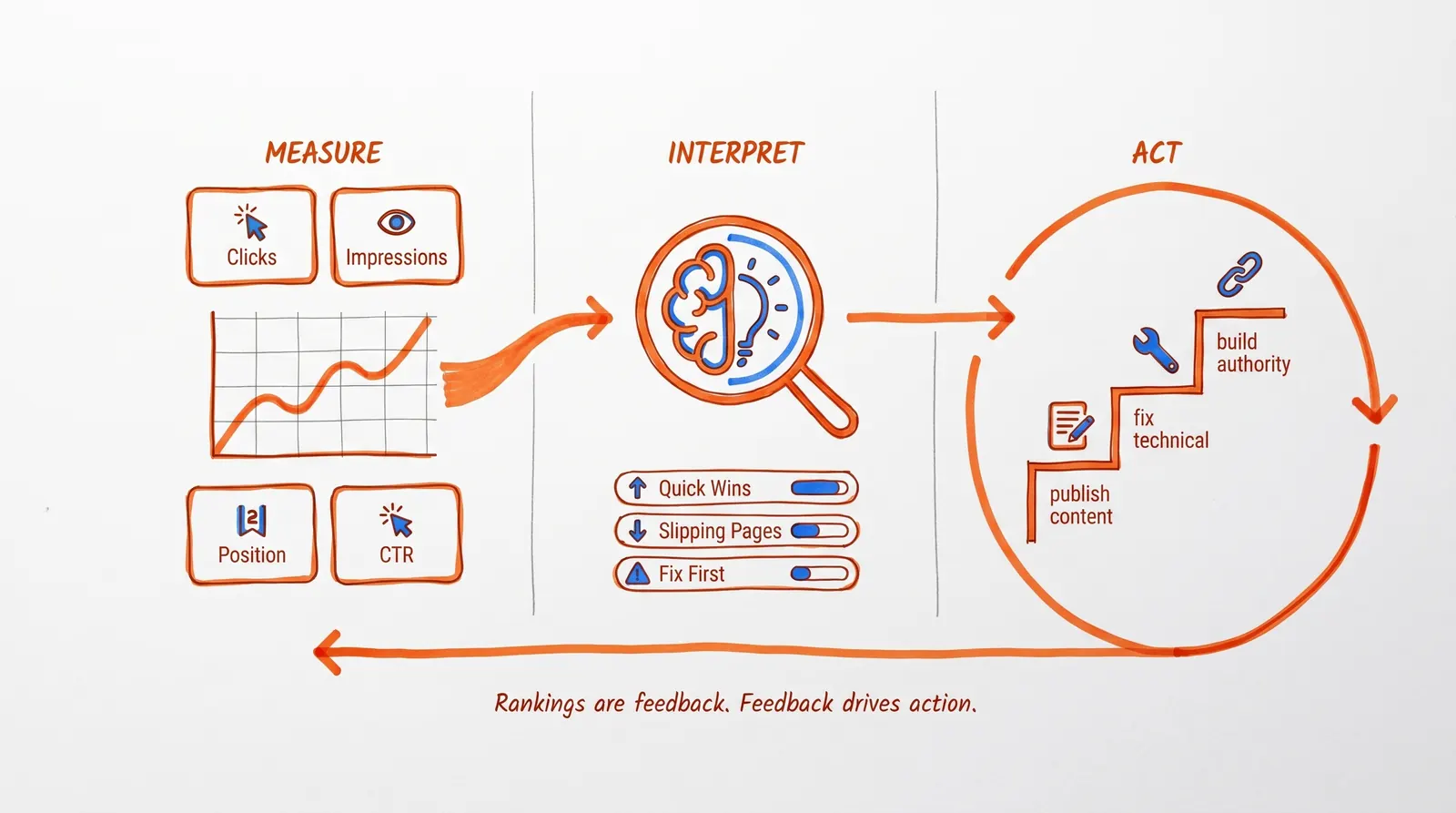
Once that feedback loop is in place, the next bottleneck shifts to execution. You still need to publish the right pages, sharpen the weak ones, fix technical problems, and build authority around the queries that are already within reach.
Your rankings are already telling you something. Now it's time to listen and act.