"Search Google or Type a URL": What It Means & What to Do

Every time you launch a browser, that single bar at the top greets you with "Search Google or type a URL." It's so familiar you probably don't even think about it anymore. But have you ever stopped to wonder what it's actually telling you?
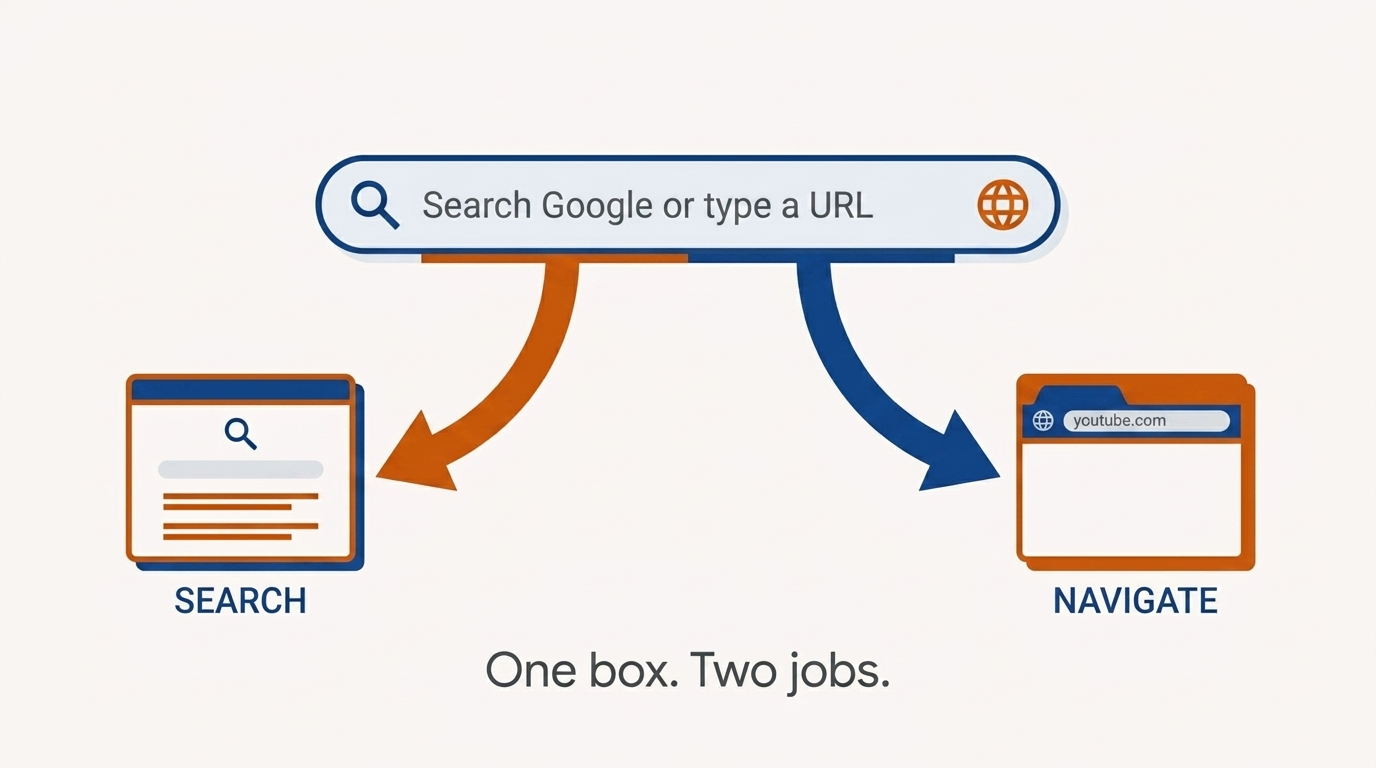
Here's the simple truth: your browser isn't broken, and it's not asking you a question. That bar serves dual purposes. Type in a question or topic, and it searches the web. Enter a website address, and it takes you straight there. Chrome named this the omnibox, though every modern browser—Firefox, Edge, Safari—operates on the same principle.
Two functions. One field.
But there's significantly more happening beneath the surface. Understanding how this works can streamline your browsing, strengthen your privacy, resolve frustrating glitches, and even shed light on how SEO connects to everyday web use. This guide unpacks it all—from foundational concepts to advanced troubleshooting, privacy controls, and the surprisingly important role this phrase plays in search optimization.
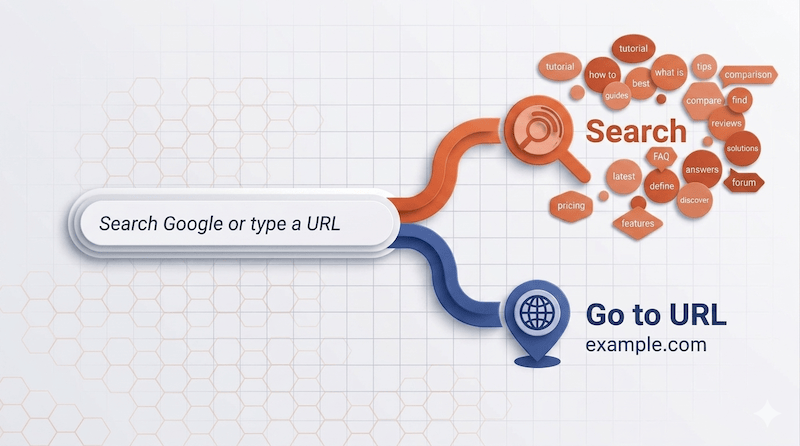
Table of Contents
- What Does "Search Google or Type a URL" Mean?
- What Is a URL?
- Why Your Browser Shows "Search Google or Type a URL"
- How Does Your Browser Know to Search vs. Navigate?
- What Happens When You Start Typing in the Address Bar?
- When Should You Search vs. Type a URL?
- How to Fix Browser Address Bar Problems
- How to Turn Off Search Suggestions and Reduce Tracking
- How to Change Your Browser Settings (2026)
- Browser Address Bar Tips and Shortcuts
- How Browser Search Behavior Affects Your SEO
- Frequently Asked Questions
What Does "Search Google or Type a URL" Mean?
If you're looking for the quick explanation, here it is:
- Already know which site you need? Enter its web address directly—something like
youtube.comorreddit.com. - Looking for something but unsure where to find it? Type your query or question, such as
affordable meal prep services near me. - Experiencing unexpected behavior like forced search engine switches, constant redirects, or settings that won't stick? This could indicate a compromised extension, altered configurations, or malware infection. Chrome explicitly warns that sudden search engine changes may signal malware presence, while Firefox maintains a dedicated guide addressing search hijacking scenarios.
That's the essence of it. Single input field, dual functionality.
For a deeper understanding of how browsers interpret your input, the logic behind their decision-making, and solutions when things malfunction, continue reading.
What Is a URL?
URL is short for Uniform Resource Locator. Strip away the jargon, and it's simply a web address—nothing more. According to MDN Web Docs, it represents the address pointing to a specific resource anywhere on the internet.
Here's what a complete URL looks like:
https://www.shop.example.com/products/categories?sort=price#reviews

This URL consists of several distinct components:
| Component | Example | Function |
|---|---|---|
| Protocol | https:// | Specifies the connection method (secure, in this instance) |
| Domain | www.shop.example.com | Identifies the website |
| Path | /products/categories | Points to a particular page within the site |
| Parameters | ?sort=price | Passes additional information to the server |
| Fragment | #reviews | Navigates to a specific section on the page |
There's no need to memorize these details. For typical browsing, just the domain works fine—amazon.com or linkedin.com gets you there.
That said, URL architecture matters immensely for technical SEO. Search engines analyze URL structure as one indicator of page content and relevance. Clean, logical URLs contribute to better indexing and user experience.
Why Your Browser Shows "Search Google or Type a URL"
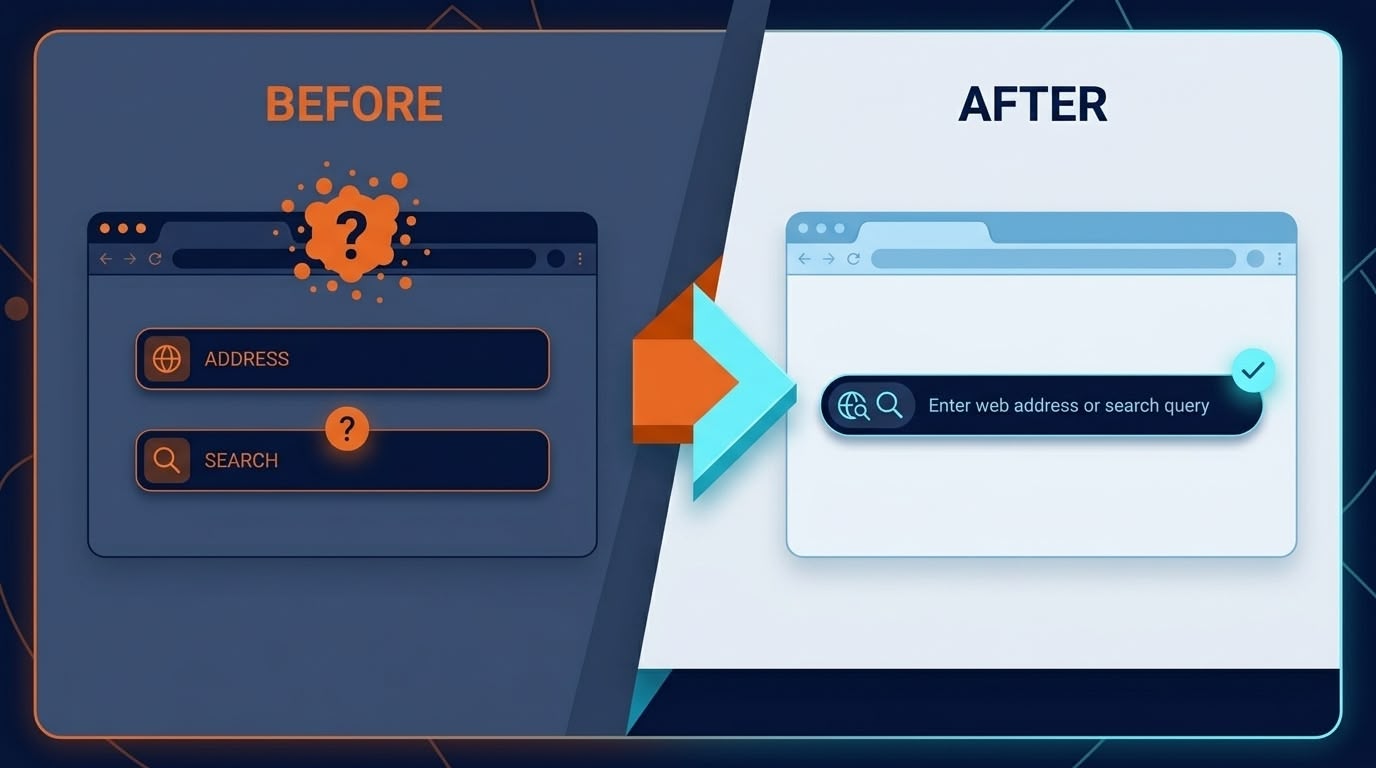
Early browsers featured two distinct input fields: one dedicated to web addresses, the other for search queries. While this seemed logical, Chromium's design documentation identifies a critical usability issue: forcing users to choose between boxes created unnecessary cognitive friction. Before typing a single character, users had to consciously decide whether they were navigating or searching.
The omnibox eliminated this mental overhead. One intelligent field interprets your intent automatically based on your input.
This approach became universal. Apple describes Safari's implementation as a Smart Search field capable of handling both web searches and direct site navigation through a single interface. Firefox and Edge adopted identical dual-function designs.
From an SEO perspective, this unified interface mirrors actual user behavior: people either navigate to known destinations or explore to discover new ones. Recognizing how search engines fulfill these distinct intentions explains the tight integration between browsers and search platforms.
How Does Your Browser Know to Search vs. Navigate?
This is where most guides gloss over the details—yet it's arguably the most important part to understand.
Browsers can't actually read minds. Instead, they rely on heuristics—essentially, intelligent pattern recognition. Chromium's omnibox documentation outlines the core logic:
- Single-word entries create ambiguity
- Input resembling a URL (containing dots, slashes, or recognizable domain structures) triggers navigation
- Multi-word input almost universally triggers search behavior
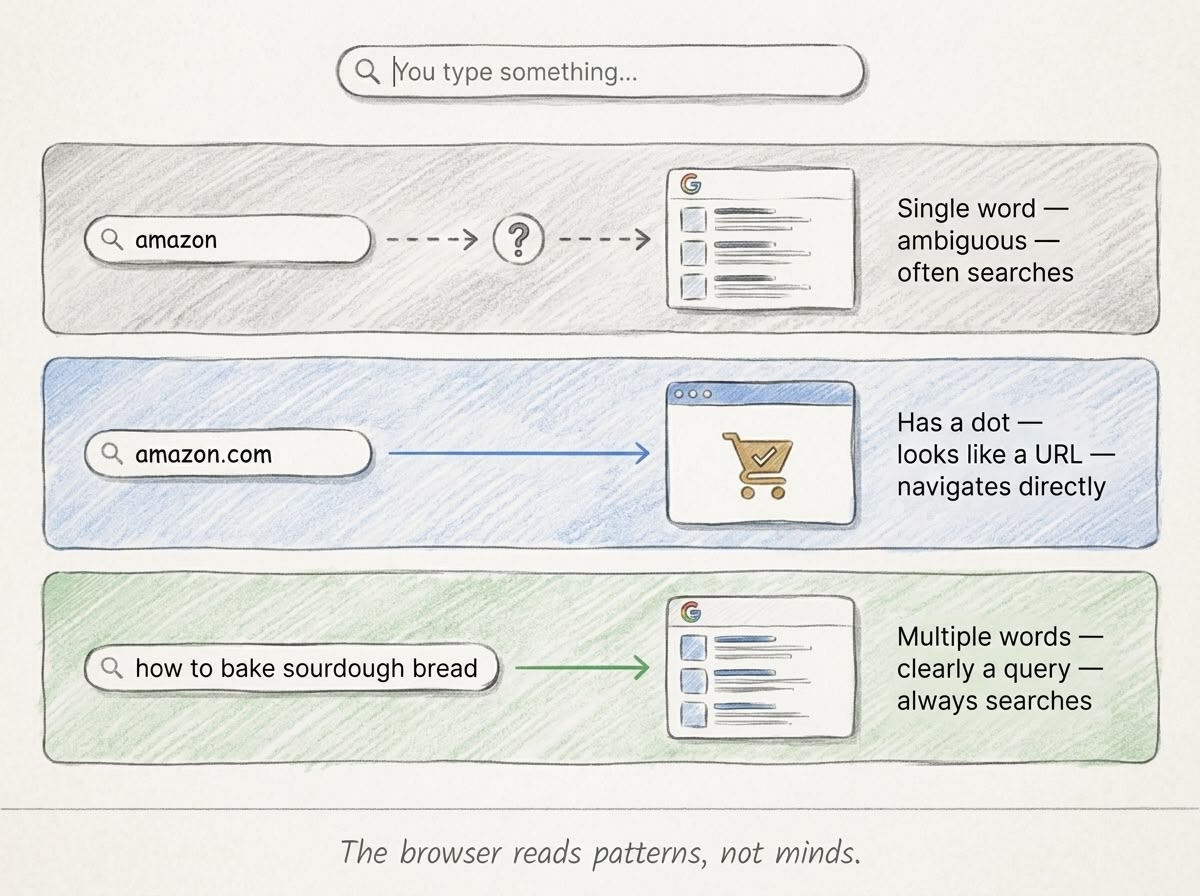
This explains why seemingly similar inputs produce different results:
| Your Input | Browser Action | Reasoning |
|---|---|---|
discord | Likely searches for "discord" | Single word creates ambiguity |
discord.com | Navigates to Discord's website | Clear URL pattern |
free video editing software for beginners | Initiates a search | Multiple words indicate a query |
help.shopify.com | Opens Shopify's help center | Contains dots—URL structure |
Ever typed instagram and ended up searching instead of landing on Instagram? That's because instagram is simply text. The browser can't determine whether you want the platform itself or recent news coverage about it. Add .com to make your intention crystal clear.
Time-saving tip: Windows and Linux users can type a site name followed by Ctrl + Enter to auto-complete with www. and .com in Chrome. Mac users use Ctrl + Return. Type instagram + Ctrl + Enter, and you'll jump straight to www.instagram.com.
This heuristic framework mirrors semantic SEO principles. Search engines and browsers alike prioritize understanding intent over literal keyword matching.
What Happens When You Start Typing in the Address Bar?
That snappy, instantaneous feeling exists because your browser activates the moment you start typing—well before you hit Enter.
Chrome's technical documentation reveals that address bar suggestions pull from your browsing history combined with data from your default search engine. Behind the scenes, Chrome may preconnect to search servers to accelerate loading times. When confidence is high about your destination, Chrome might even prerender the complete page while you're still typing.Firefox, Edge, and Safari employ similar real-time suggestion systems, blending your history, bookmarks, active tabs, and search engine predictions.
This background activity explains several familiar behaviors:
- Suggestions appearing mid-keystroke
- Browsers seemingly "remembering" your preferences
- Your most-visited sites consistently ranking first
- Some predictions feeling uncannily precise while others completely miss
For website operators, these behavioral patterns hold strategic value. Distinguishing between organic search arrivals and direct navigation visits reveals how audiences discover your site and how successfully you're building returning traffic.
When Should You Search vs. Type a URL?
Search When Exploring or Researching
Initiate a search when you're investigating topics, evaluating alternatives, diagnosing issues, or tracking down a site whose exact address you've forgotten. Essentially, whenever your destination isn't predetermined.
Examples:
top password managers for small businessesfix Firefox homepage reset issue24-hour pharmacies open now nearby
Enter URLs for Known Destinations
Input a URL directly when targeting a specific, trusted site. This approach is faster and eliminates intermediary steps like clicking through search results.
Examples:
trello.comstackoverflow.comdocs.microsoft.com
Website owners should recognize this distinction's strategic significance. Direct URL visitors represent your existing audience—they already know you. Search-driven visitors remain unconverted prospects. Analyzing traffic source composition and what motivates each visit type informs smarter content strategy decisions.
How to Fix Browser Address Bar Problems
URL Input Triggers Search Instead of Navigation
This frustrating scenario occurs frequently, typically stemming from one of four causes.
Ambiguous input structure. Entering zoom creates ambiguity. Entering zoom.us eliminates it. Chromium's documentation confirms that single-word entries present the most challenging interpretation scenarios and frequently default to search mode.
Autocomplete selecting search suggestions. Occasionally autocomplete prioritizes a search suggestion over your intended URL. Both Chrome and Firefox allow removing problematic suggestions by highlighting them and pressing Shift + Delete.
Modified search engine or extension configurations. Verify your browser's search preferences and installed extensions. Firefox documentation indicates that extensions can alter default search engines. Chrome cautions that persistent search engine settings despite change attempts may signal malware infection.
Browser hijacking. Firefox's search hijacking guide identifies inability to modify homepages, remove toolbars, or adjust search settings as hijacking indicators. Chrome similarly lists unexpected search engine modifications as potential malware symptoms and recommends settings resets.
Resolution steps:
- Enter complete domains like
example.comorhttps://example.com - Delete problematic autocomplete suggestions
- Verify default search engine configuration
- Deactivate or uninstall questionable extensions
- Reset browser to defaults if issues continue
Unexplained Browser Settings Modifications
Treat this as a serious security concern.
Chrome's official warnings state that spontaneous search engine modifications often indicate malware presence. Firefox documentation describes search hijacking as unauthorized third-party software altering browser configurations, typically to inject advertisements, sponsored links, or fraudulent search results.Key warning indicators:
- Homepage modifications occurring without authorization
- Default search engine shifting to unfamiliar services
- URL entries redirecting to unexpected destinations
- Toolbars or extensions installing spontaneously
- Inability to persist settings changes
Recommended actions:
- Uninstall unrecognized or suspicious extensions
- Restore browser to factory defaults
- Execute comprehensive malware scans
- For managed devices (work/school), administrators may control browser configurations centrally
Critical distinction: Chrome documentation notes that enterprise-managed devices frequently have administrator-locked search settings. Locked configurations don't always signify malware—organizational IT policies often enforce these restrictions.
How to Turn Off Search Suggestions and Reduce Tracking
Understanding the privacy tradeoff matters because convenience and data protection inherently conflict.
Chrome's privacy documentation explains that enabling Improve search suggestions transmits your address bar input to your default search engine in real-time, accompanied by IP address and applicable cookies. Edge transmits typed content to search providers for instant suggestions. Firefox documentation confirms identical behavior: typed text flows to your default search engine when suggestions activate. Safari's documentation indicates search suggestions may log your query terms.If this data transmission concerns you, disable suggestions entirely. All major browsers provide settings toggles for this.
Noteworthy privacy feature: Firefox automatically disables search suggestions during Private Browsing sessions, with Edge implementing equivalent restrictions in InPrivate mode.
How to Change Your Browser Settings (2026)
No single toggle exists to "remove Search Google or type a URL." Instead, you can customize the search engine, homepage, new tab page, and suggestion preferences. Platform-specific instructions follow.
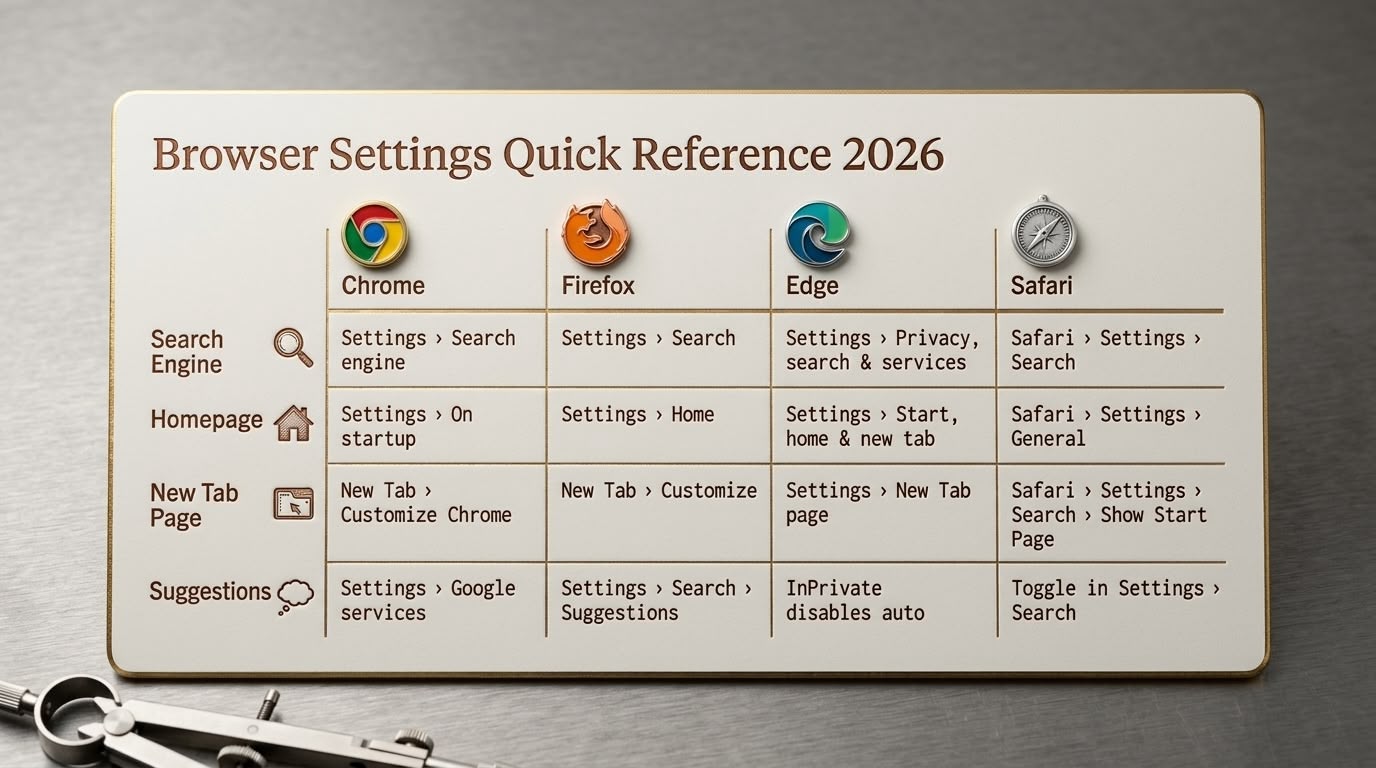
Chrome
- Modify default search engine: Navigate to
Settings > Search engine. Chrome permits changes without restrictions. - Adjust startup or homepage: Access
Settings > On startupto control launch behavior. UseSettings > Appearancefor Home button configuration. - Personalize New Tab page: Open a fresh tab and select Customize Chrome. Modify shortcuts, visual themes, and additional elements. Chrome documentation notes extension-controlled New Tab pages display attribution in the footer.
- Limit suggestion tracking: Navigate to
Settings > You and Google > Google services > Improve search suggestions.
Firefox
- Modify default search engine: Access
Settings > Search. Firefox allows default engine changes, engine removal, and suggestion controls. - Adjust homepage: Navigate to
Settings > Hometo select Firefox Home, custom URLs, or blank pages. Firefox homepage configuration offers comprehensive control. - Personalize New Tab: Firefox's New Tab page permits hiding or displaying shortcuts, recent activity, and additional components. Customization options detailed here.
- Persistent settings issues: Firefox documents search hijacking risks from extensions that modify search engines or homepages.
Microsoft Edge
- Modify default search engine: Go to
Settings > Privacy, search, and services > Address bar and search. Microsoft documentation specifies engines must be used once before appearing in available options. - Adjust homepage: Access
Settings > Start, home, and new tab page. - Suggestion behavior: Edge transmits typed content to default search providers for suggestions, though automatic suggestions disable during InPrivate sessions.
Safari on Mac
- Modify search engine: Navigate to
Safari > Settings > Search. Apple permits separate search engine selection for Private Browsing sessions. - Manage suggestions: Within Search settings, configure Include search engine suggestions, Include Safari Suggestions, Enable Quick Website Search, and Show Start Page toggles.
- Adjust homepage: Access
Safari > Settings > Generalto define new window and tab launch behavior, including homepage specification.
Browser Address Bar Tips and Shortcuts
Master these capabilities, and the address bar transforms from a simple input field into a powerful command interface.
→ Instant address bar focus. Chrome implements Ctrl/Cmd + L for immediate address bar selection. Most competing browsers support identical shortcuts.
→ Tab search in Chrome. Enter @tabs followed by Tab or Space to search active tabs instead of manually hunting through numerous open windows.
→ Site-specific searching in Chrome. Chrome offers site search shortcuts enabling direct website searches from the address bar. Manage these shortcuts through search settings.
→ Firefox shortcut system. Firefox implements search shortcuts such as @wikipedia, alongside specialized filters: * targets bookmarks, % searches open tabs, $ matches URLs, and ? restricts to search suggestions exclusively.
→ Safari's Quick Website Search. Safari memorizes site-specific search patterns enabling direct in-site searches via the Smart Search field.
How Browser Search Behavior Affects Your SEO
Most coverage of "search Google or type a URL" ends with browser mechanics. The broader strategic picture matters considerably for anyone focused on website growth.
This phrase encapsulates two fundamentally different user intentions:
- Type a URL → Users already identified their destination. These represent returning visitors or established customers.
- Search → Users remain in exploration mode. Organic growth originates here.
The exploration phase drives the overwhelming majority of organic audience expansion.
When someone enters canva.com, Canva has already secured that visit. Conversely, when someone searches easy graphic design tools for non-designers, every well-optimized competitor gains visibility. This single contrast encapsulates the entire SEO landscape.
Search query users represent reachable, unconverted audiences. They're investigating options, evaluating alternatives, seeking solutions. Websites appearing in results earn consideration, engagement, and ultimately conversions.
For website operators pursuing organic traffic growth, the critical question becomes: does your content surface during these search moments?
Addressing this requires rigorous keyword research and precise intent mapping—identifying exactly what your target audience types into that bar, then ensuring your content dominates those results.
Frequently Asked Questions
Is "Search Google or Type a URL" a Virus?
No. This represents standard browser functionality. The message simply indicates your browser's address bar accommodates both web searches and direct site navigation. Concern is warranted only when search engines change without authorization, homepages modify spontaneously, or redirects to unfamiliar destinations occur. Chromium's documentation verifies this as conventional browser architecture.
Why Does Typing "LinkedIn" Trigger Search Instead of Navigation?
Because linkedin constitutes a single word, creating interpretive ambiguity. Chromium documentation identifies single-word inputs as particularly challenging interpretation scenarios, frequently defaulting to search behavior. Entering linkedin.com eliminates ambiguity entirely. Alternatively, type linkedin followed by Ctrl + Enter (Windows/Linux) for automatic completion to www.linkedin.com.
Can I Remove the "Search Google or Type a URL" Message?
No single setting removes this phrase. However, you can modify default search engine, homepage, and new tab configurations to alter what displays and how the bar functions. This typically satisfies the underlying intent behind removal requests.
Does Typing in the Address Bar Send My Data to Google?
Data transmits to your configured default search provider (potentially Google, Bing, DuckDuckGo, or alternatives) when suggestion features activate. Chrome, Edge, Firefox, and Safari documentation all confirm typed text may transmit for autocomplete functionality. If privacy concerns arise, deactivate suggestion features through browser settings.
What's the Difference Between a URL and a Search Term?
A URL specifies a precise web address—reuters.com, for instance. A search term represents a query, phrase, or subject—such as breaking international news today. MDN Web Docs defines URLs as addresses pointing to unique internet resources. Browsers analyze input characteristics (dots, slashes, word count) to infer intent.
How Do I Search Inside a Specific Website from the Address Bar?
Implementation varies by browser. Chrome implements site search shortcuts enabling direct in-site searches from the address bar. Firefox provides search shortcuts including @wikipedia syntax. Safari offers Quick Website Search functionality that retains site-specific search patterns.
Can I Use a Different Search Engine Instead of Google?
Absolutely. All mainstream browsers permit default search engine modification. Chrome: navigate to Settings > Search engine. Firefox: access Settings > Search. Edge: go to Settings > Privacy, search, and services > Address bar and search. Safari: select Safari > Settings > Search. Options include Bing, DuckDuckGo, Yahoo, Ecosia, and numerous alternatives.
What Browser Is Best for Privacy When Using the Address Bar?
All major browsers offer tracking reduction via disabled search suggestions. Firefox distinguishes itself somewhat by defaulting to disabled search suggestions during Private Browsing sessions. Edge implements identical restrictions in InPrivate mode. Maximum privacy results from combining privacy-oriented browsers like Firefox with privacy-focused search engines like DuckDuckGo, while maintaining disabled search suggestions.
What "Search Google or Type a URL" Really Means
"Search Google or type a URL" carries less complexity than initially apparent.
Your browser provides one intelligent field serving dual functions: search for discovery and exploration, type a URL for direct navigation to known destinations.
During normal operation, this phrase functions merely as instructional guidance. When redirects occur, search engines switch unexpectedly, or settings fail to persist, investigate extensions, restore browser defaults, and execute malware scans.
For those focused on the inverse scenario—appearing in search results rather than relying on direct URL entry—strategic SEO becomes essential. Thorough keyword research, consistent content publication, and genuinely valuable answers to audience questions create compounding organic growth over time.
Understanding this phrase transforms it from cryptic browser message to obvious truth: the primary gateway to internet access.
Smart SEO,
Faster Growth!
Most Read Articles
Generative Engine Optimization (GEO)
Learn how Generative Engine Optimization (GEO) helps your content rank in AI search engines like ChatGPT and Google AI. This comprehensive guide explains the differences between SEO and GEO, why it matters for your business, and practical steps to implement GEO strategies for better visibility in AI-generated responses.
DylenJan 18, 2025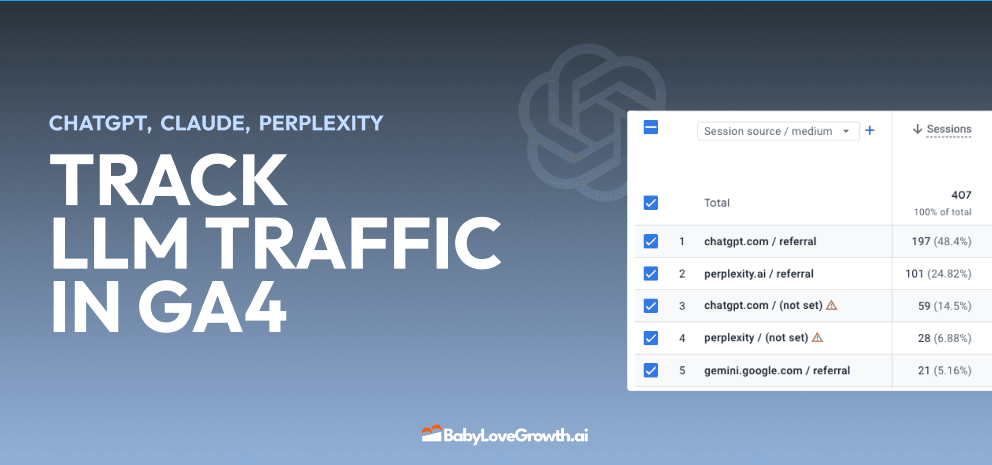
Track LLM Traffic in Google Analytics 4 (GA4)
Learn how to track and analyze traffic from AI sources like ChatGPT, Claude, Perplexity, and Google Gemini in Google Analytics 4. This step-by-step guide shows you how to set up custom filters to monitor AI-driven traffic and make data-driven decisions for your content strategy.
DylenMar 18, 2025
How to Humanize AI Text with Instructions
Learn practical techniques to make AI-generated content sound more natural and human. This guide covers active voice, direct addressing, concise writing, and other proven strategies to transform robotic text into engaging content.
DylenApril 7, 2025
Open AI Revenue and Statistics (2024)
Comprehensive analysis of OpenAI financial performance, user engagement, and market position in 2023. Discover key statistics including $20B valuation, $1B projected revenue, and 100M+ monthly active users.
DylenOctober 03, 2025"Search Google or Type a URL": What It Means & What to Do
Learn what "Search Google or type a URL" actually means, how your browser decides whether to search or navigate, and what to do if your address bar starts behaving unexpectedly. Includes browser settings guides for Chrome, Firefox, Edge, and Safari.
DylenApr 21, 2026